All of them answer
- The Internet works → the service is tried once more
- Still no answer → the connection is checked again
DOWN
An incident, a log entry and a notification with sound — repeated until acknowledged if you want.
TCP service monitor
myNetWorking regularly connects to your servers, routers, NAS devices and printers — any TCP host and port — and shows their status and response time. Before it reports an outage, it asks reference servers, so losing your own Internet doesn’t set off a false alarm.
Event log
Outage verification
A failed connection is not an outage yet. Before myNetWorking blames a service, it asks independent reference servers whether your connection works. The “DOWN” status appears only when the Internet works and the service fails to answer twice in a row.
All of them answer
DOWN
An incident, a log entry and a notification with sound — repeated until acknowledged if you want.
Only some answerNew in 1.1.0
No network
For the next 30 seconds no service is blamed for an outage.
None of them answer
No network
A log entry instead of an alarm — it isn’t the service’s fault. Losing the Internet can have its own notification.
During an outage the service is checked more often (every 10 s by default); its recovery closes the incident.
You can change the reference servers in Settings. A server that has never answered is left out of the verdict.
Features
Home lab, small office, a NAS in the closet — myNetWorking watches your services and records every outage with its start, end and duration. It runs on your device, with no account and no cloud.
A host or IP address and a port: server, router, NAS, printer, website. You can also paste an http(s):// address — the app takes the host name from it.
Every successful connection shows its latency in milliseconds. You set the check interval for each service separately — from 5 seconds.
A notification and a sound when a service goes down or comes back (macOS, Windows, Linux, iOS, Android). The alarm can repeat until you acknowledge it.
Every outage becomes an incident with a start, an end and a duration. Acknowledge it, move it to the archive, restore it or delete it individually.
A chronological record of outages, recoveries, network loss and monitoring starts. Export logs and incidents to a CSV file.
A list or an icon grid in three sizes. Manual order, or sort by name or by last incident.
Closing the window doesn’t stop monitoring: the app stays in the menu bar or system tray (on Linux it minimizes). Launch at startup on macOS 13+, Windows and Linux. On Android it keeps monitoring in the background with no time limit, as a foreground service.
No account, ads, analytics or telemetry. Your settings, incidents and logs stay on your device.
Screenshots
The same layout on your computer, tablet and phone: services, incidents, logs and settings. In a wide window, navigation moves to a sidebar.
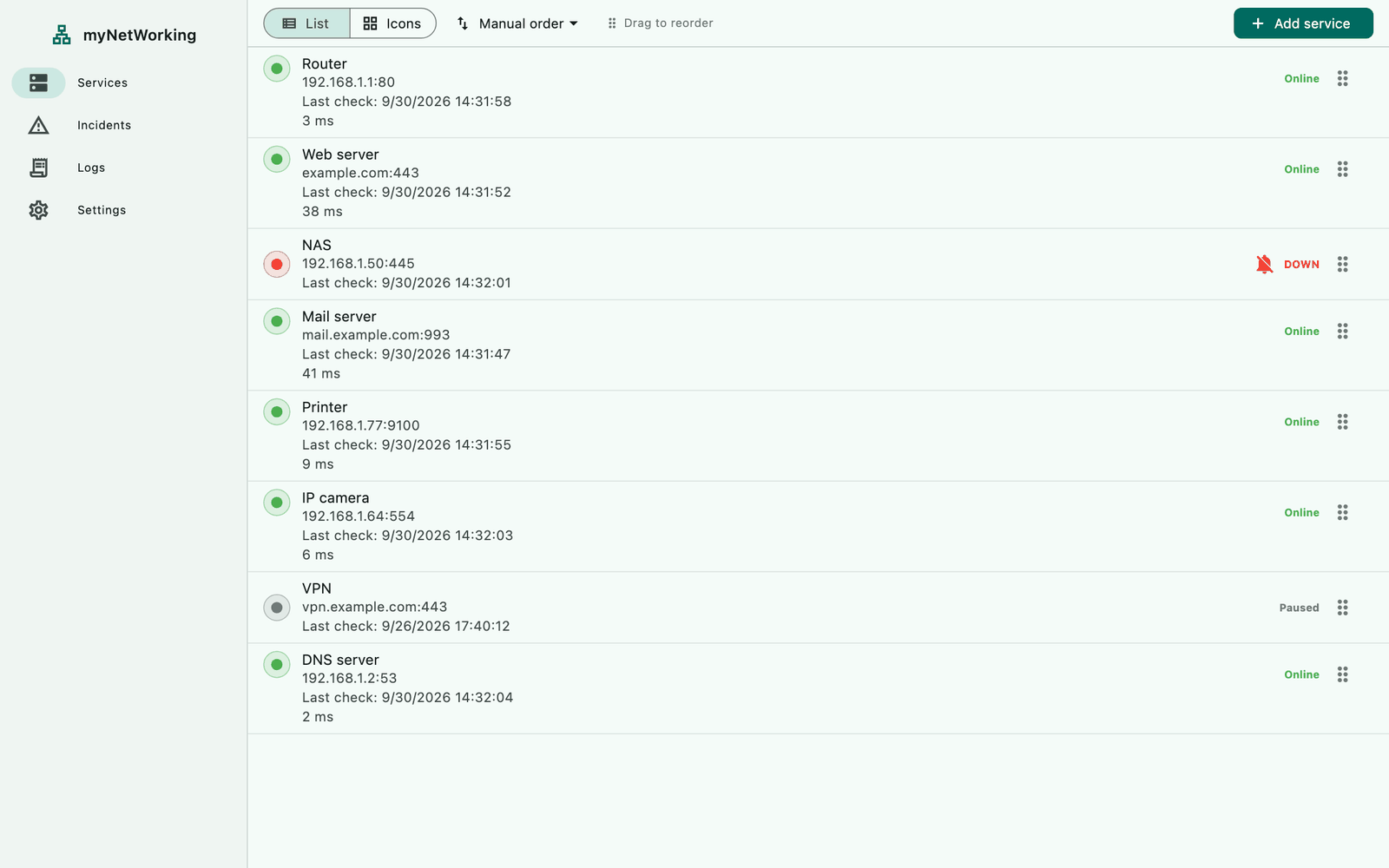
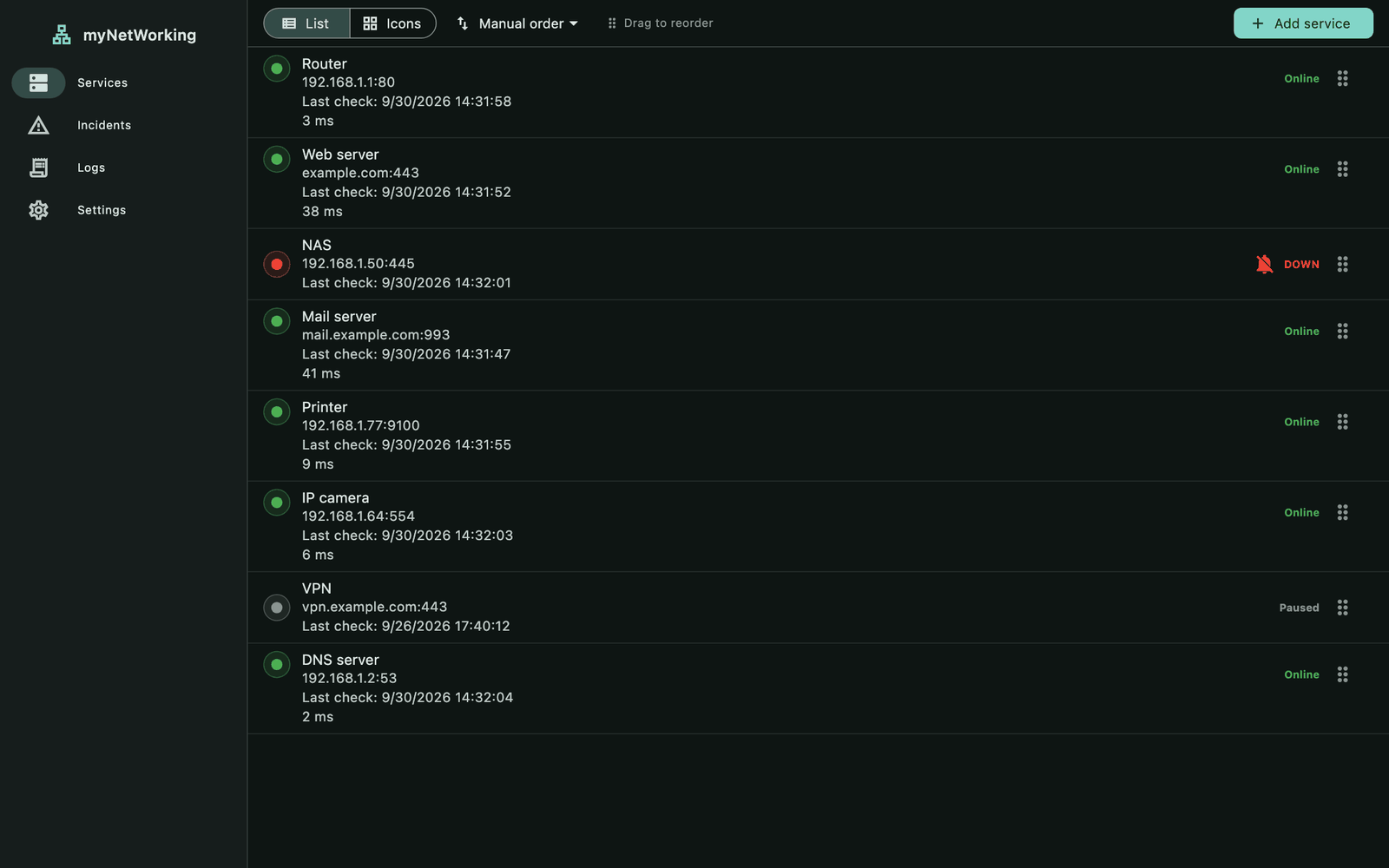
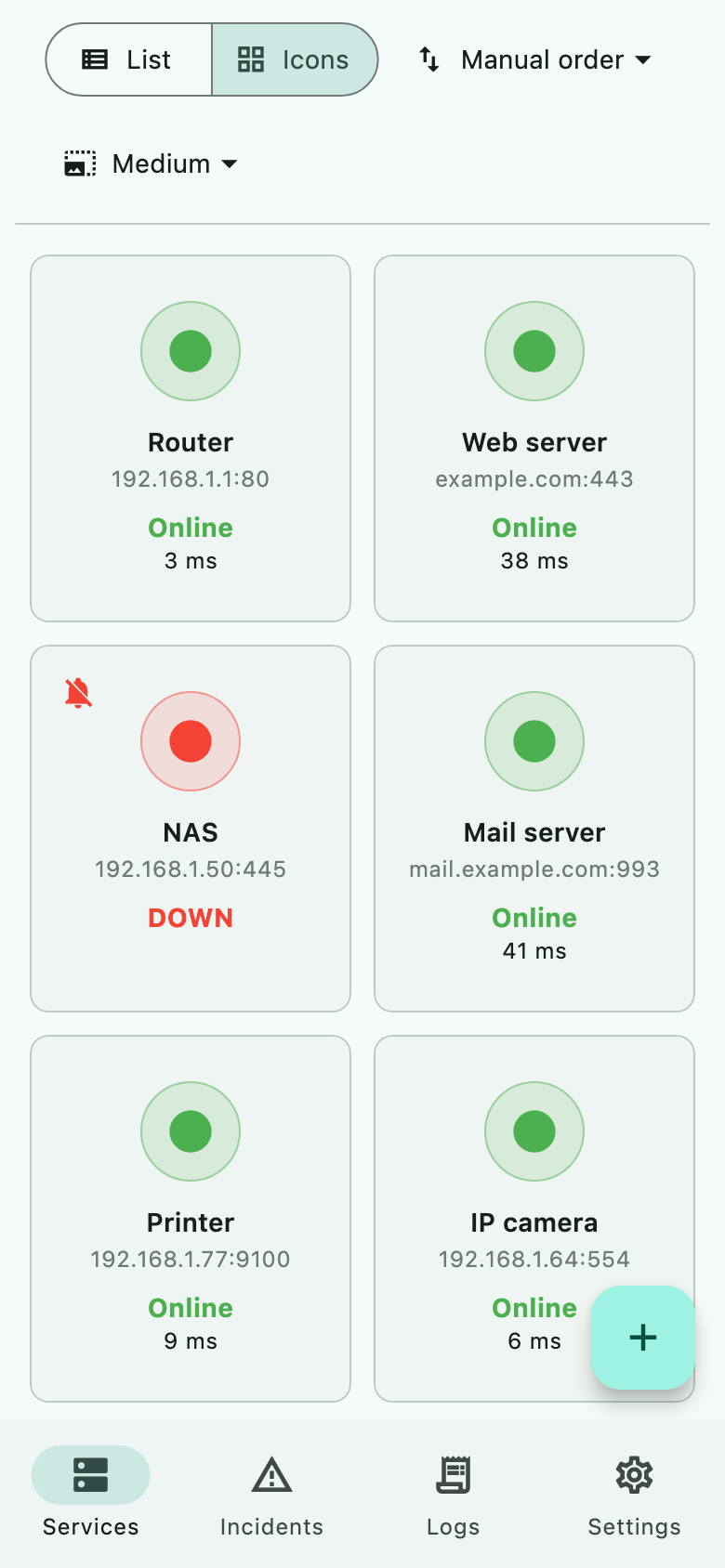
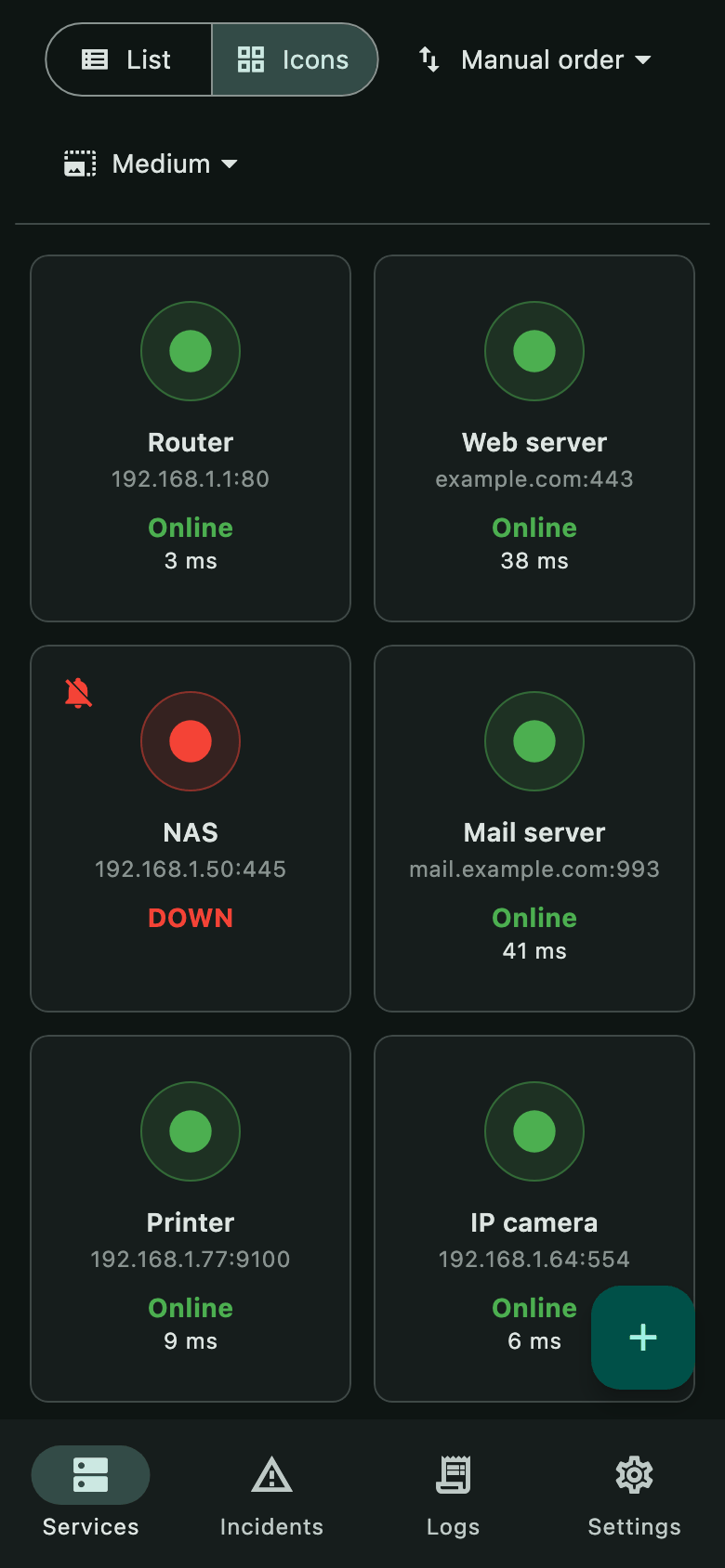
Services with their current status and response time: a list on the computer, the icons view on the phone.
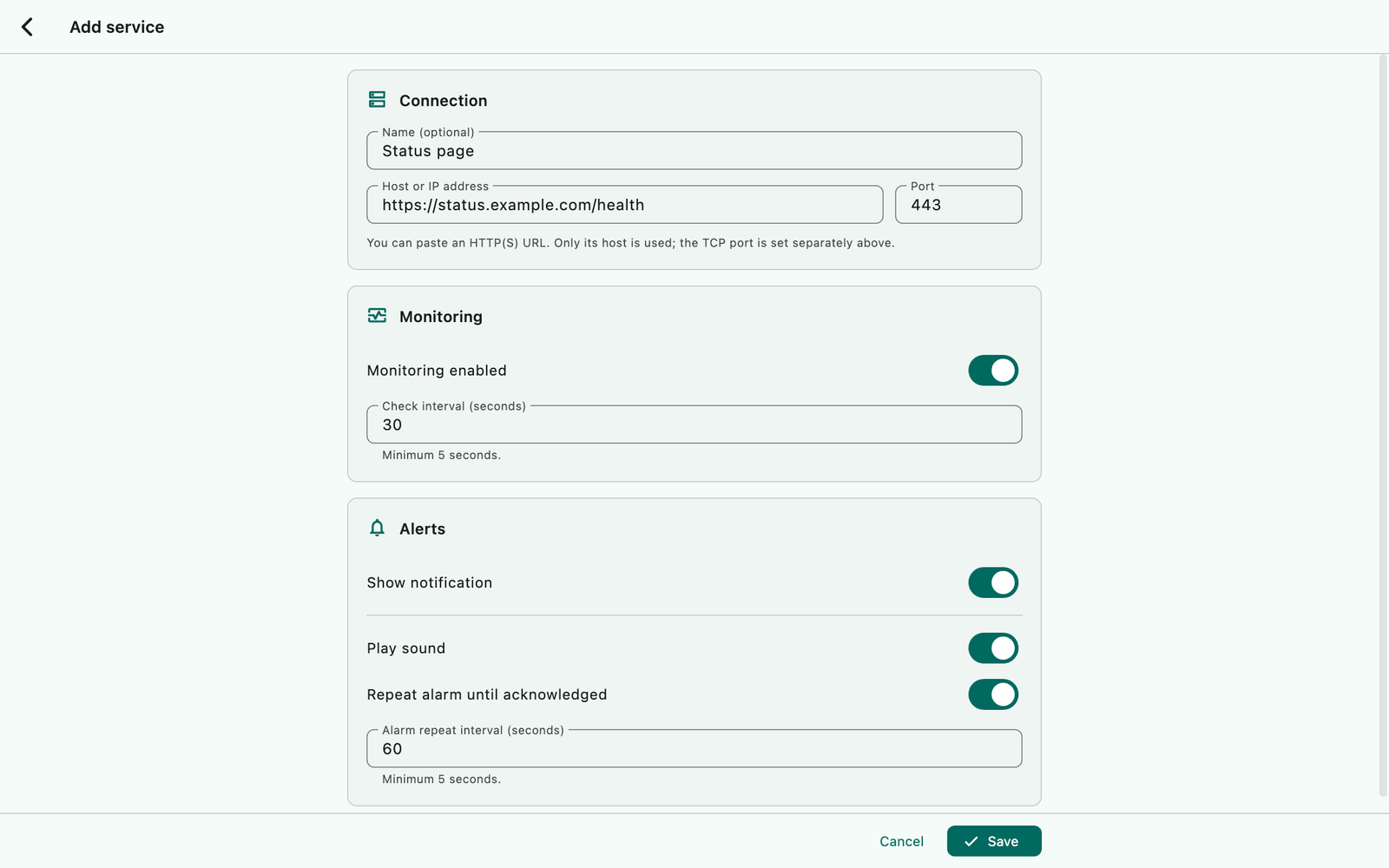
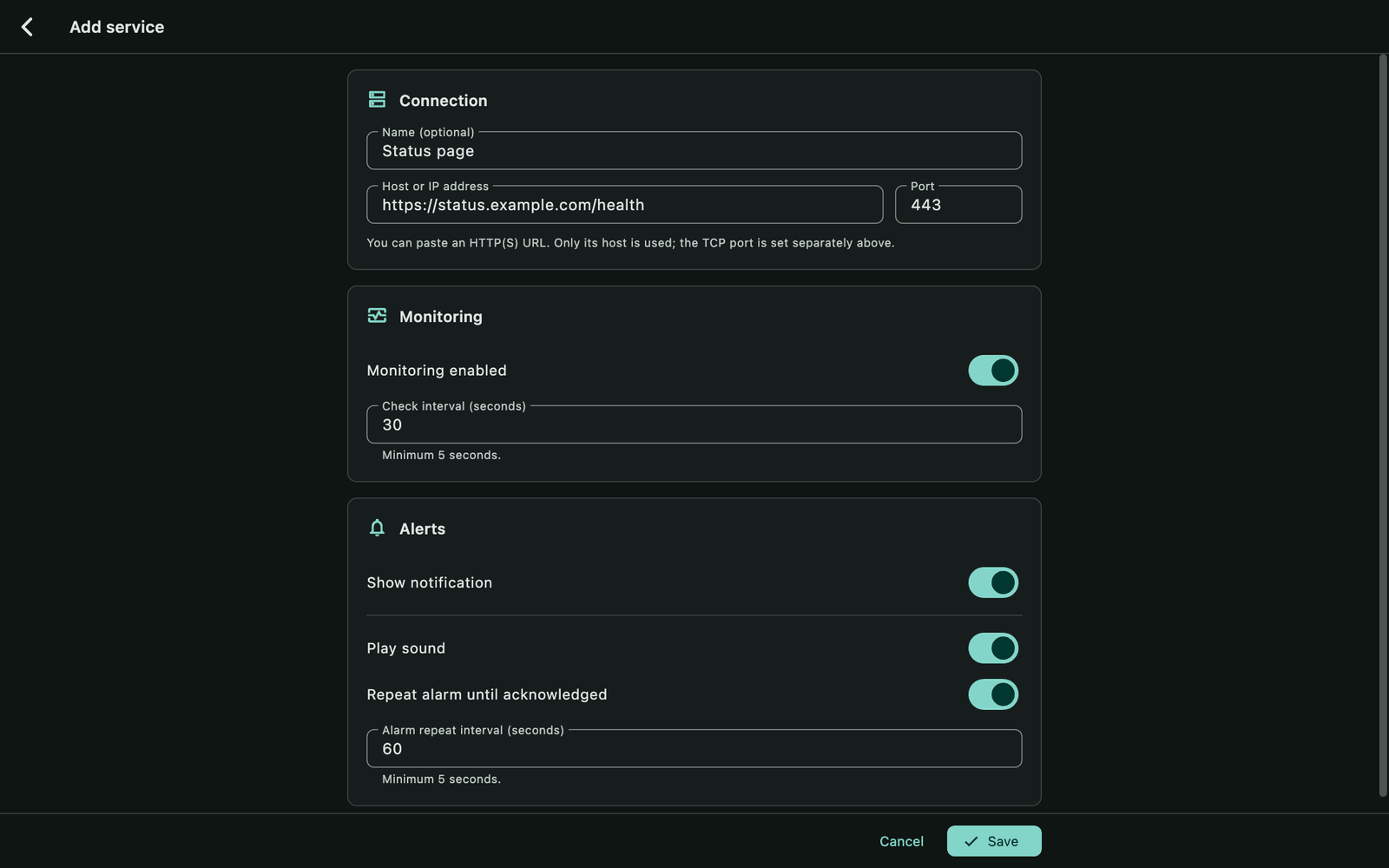
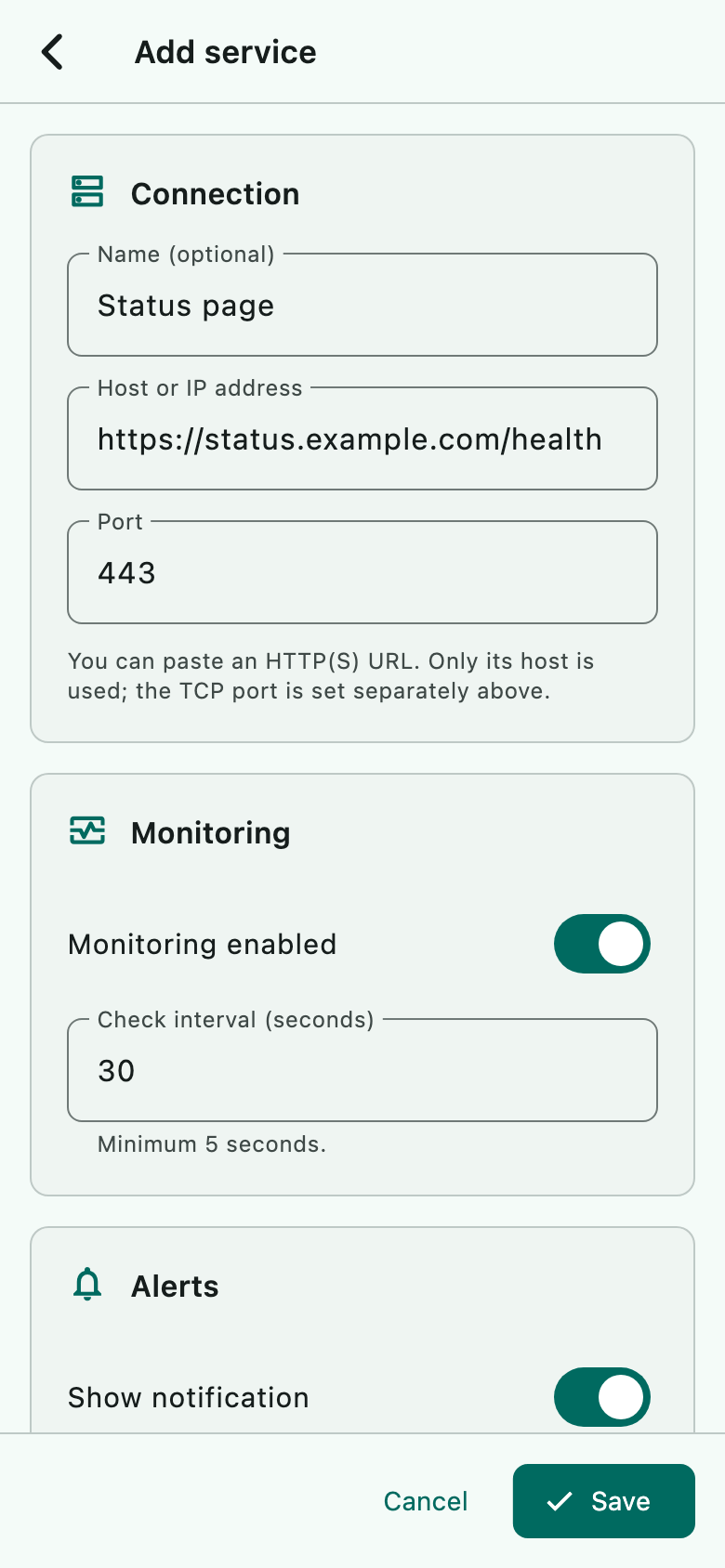
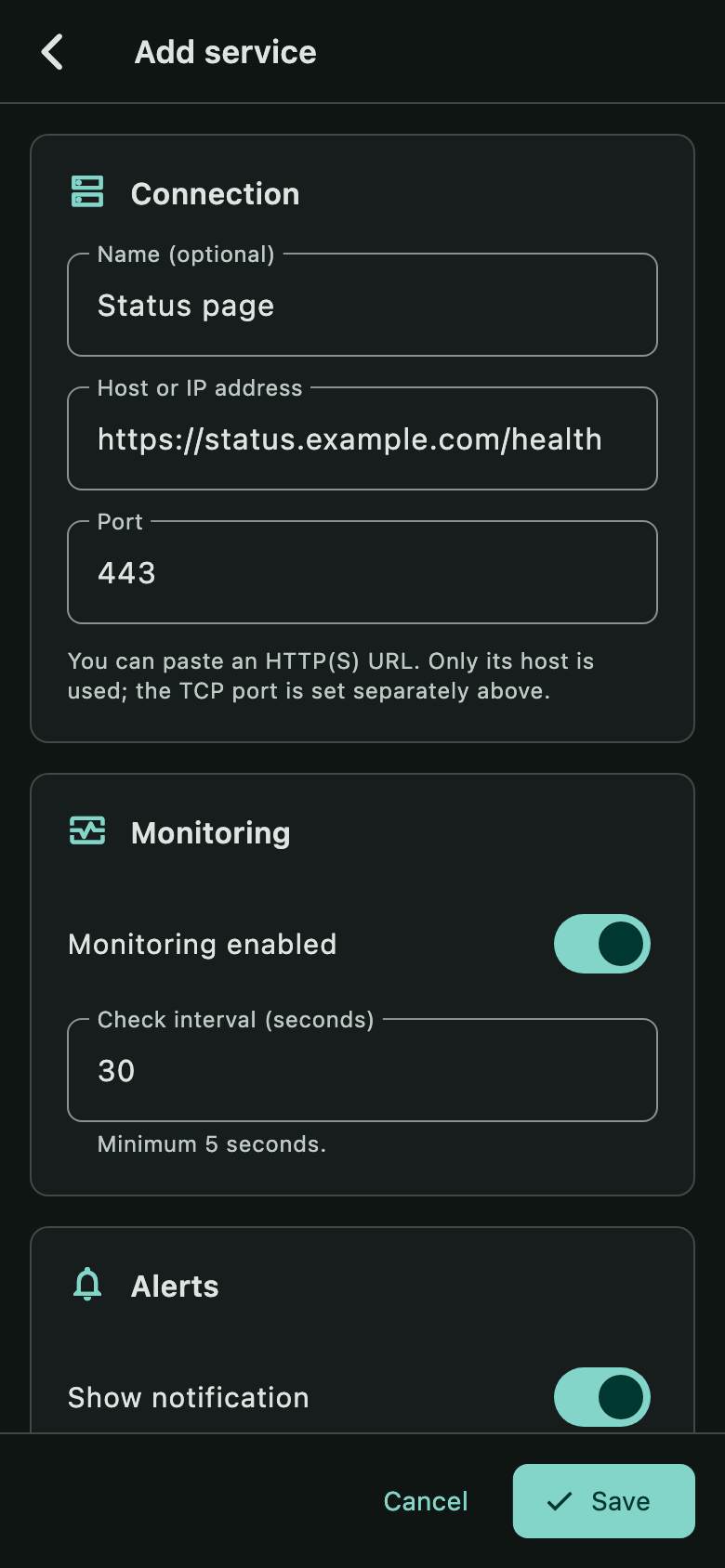
A new service: host, IP address or http(s)://, port, check interval and alarms.
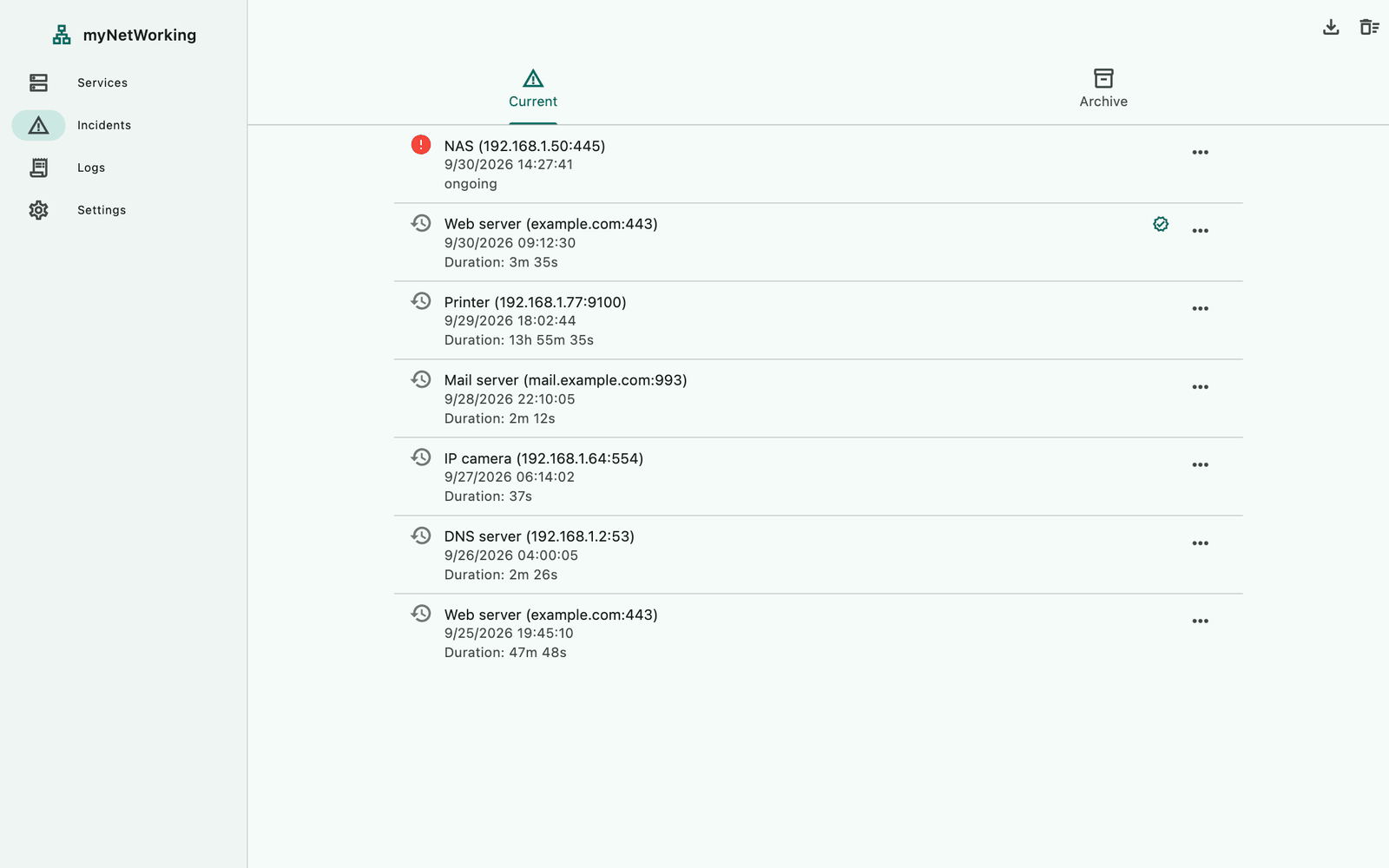
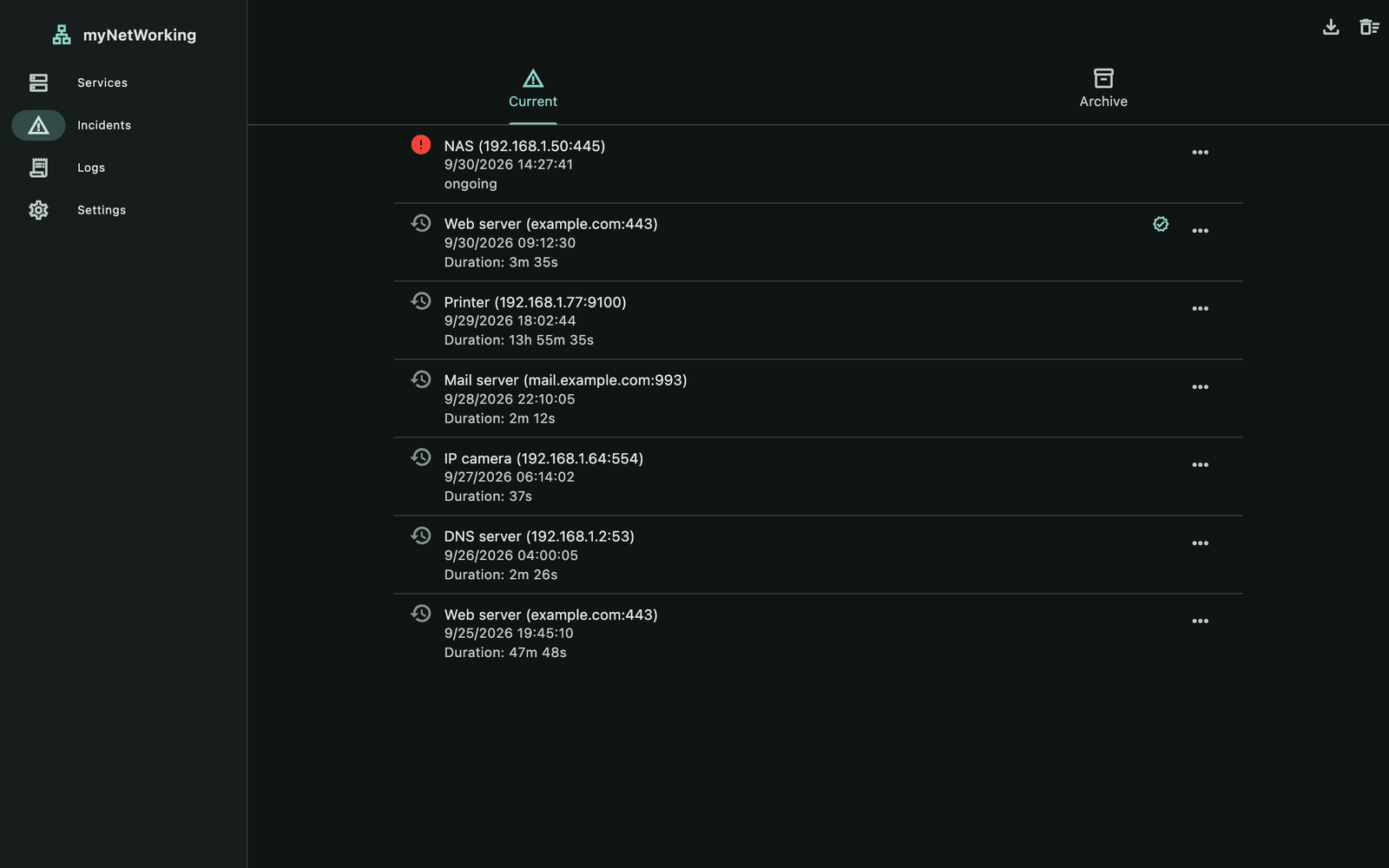
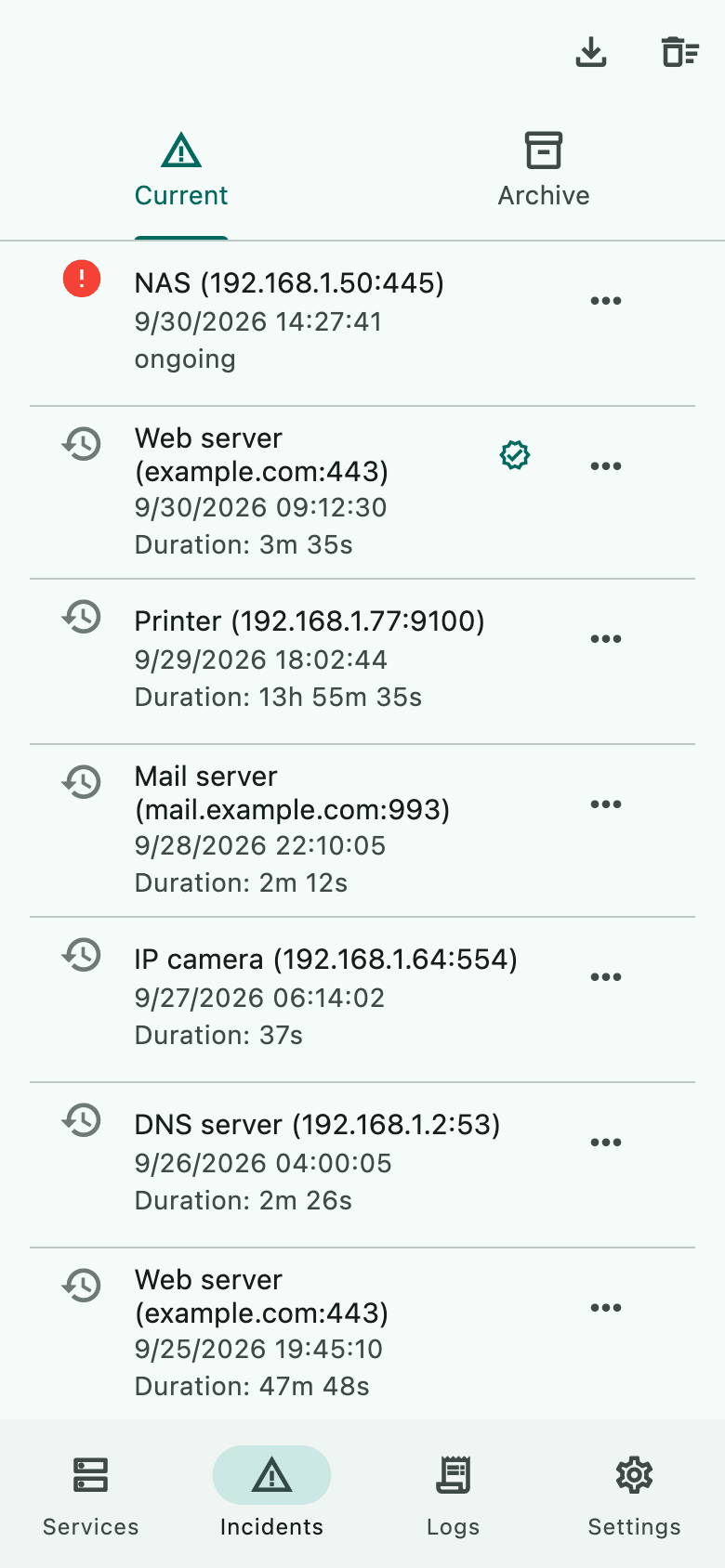
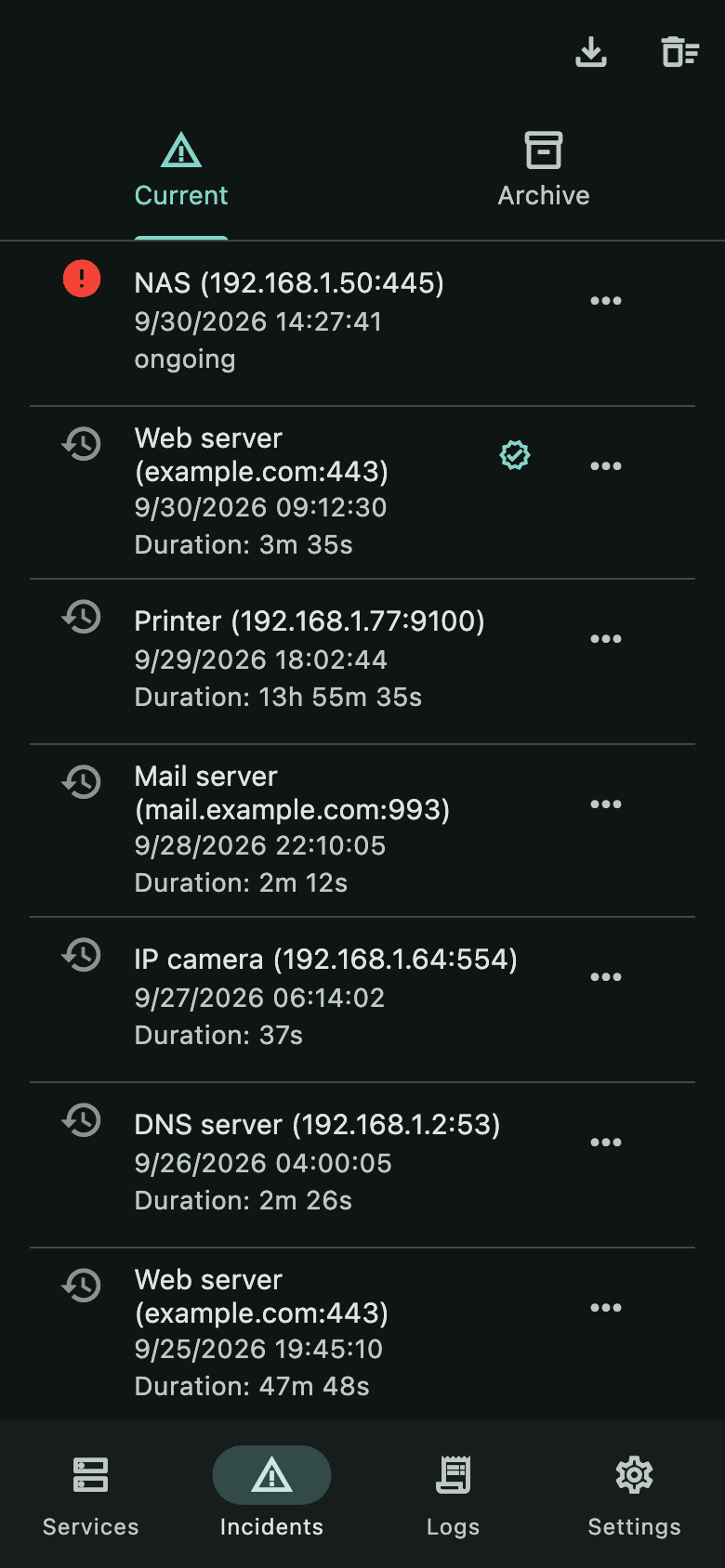
Incidents with their duration — current ones and the archive.
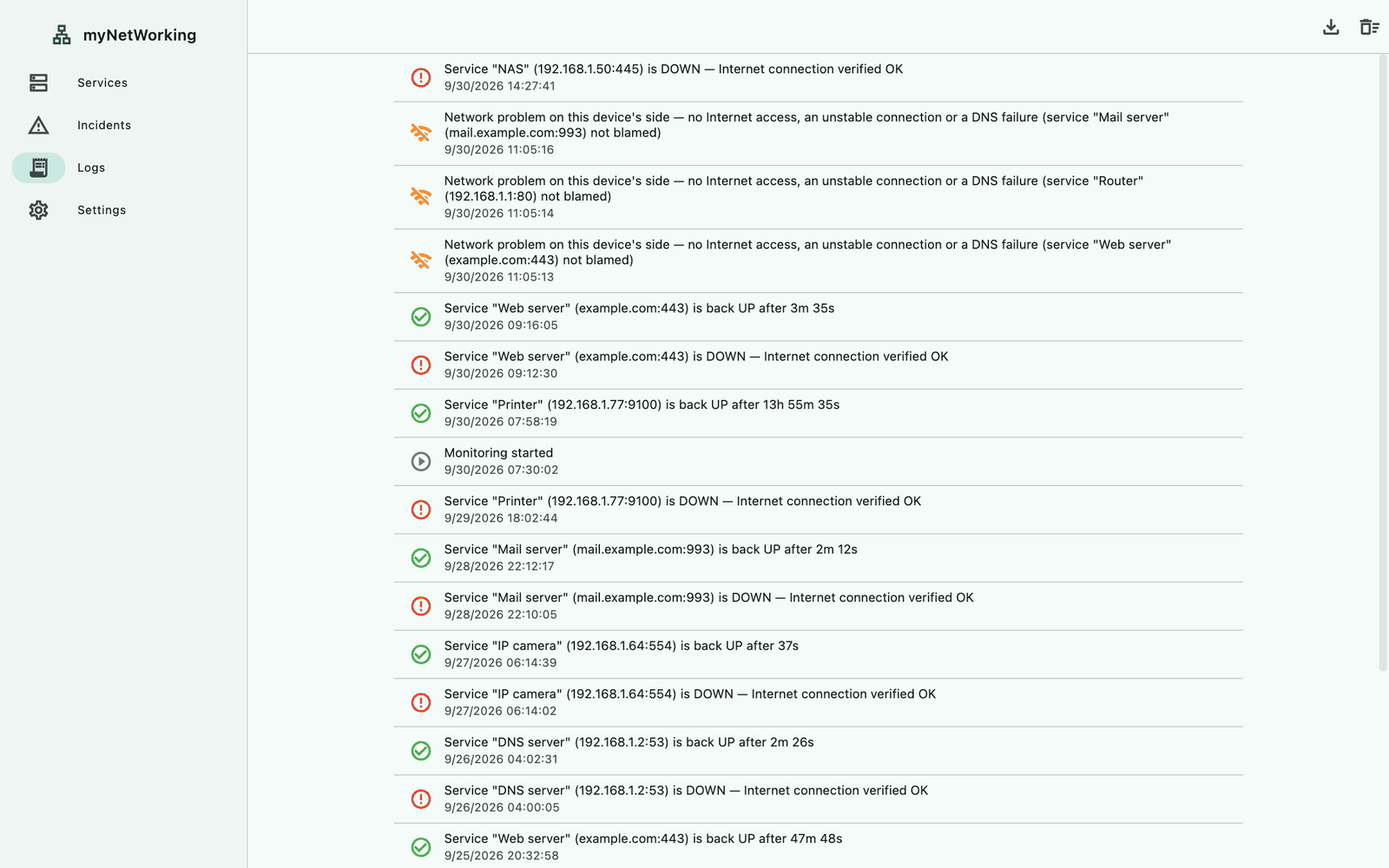
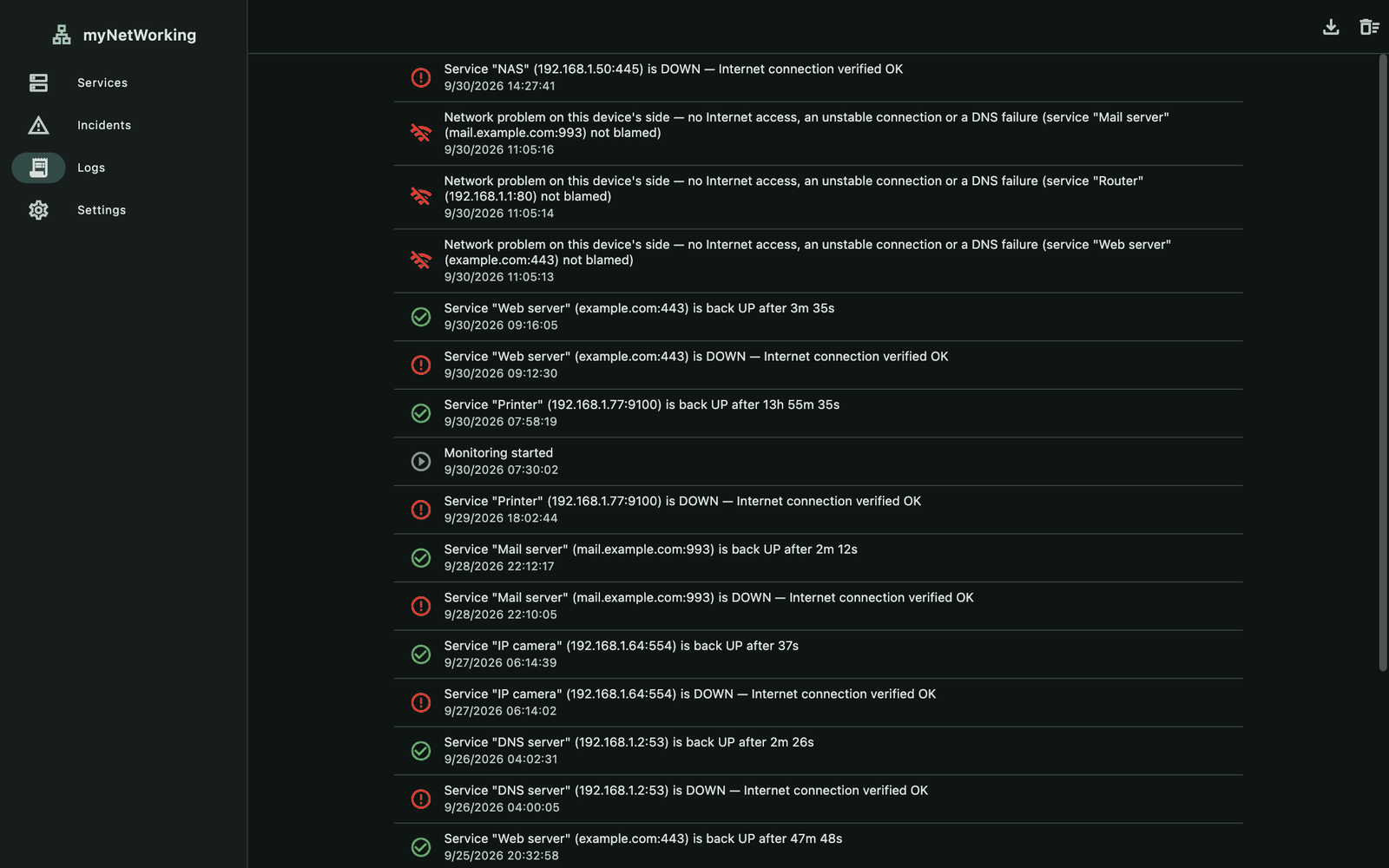
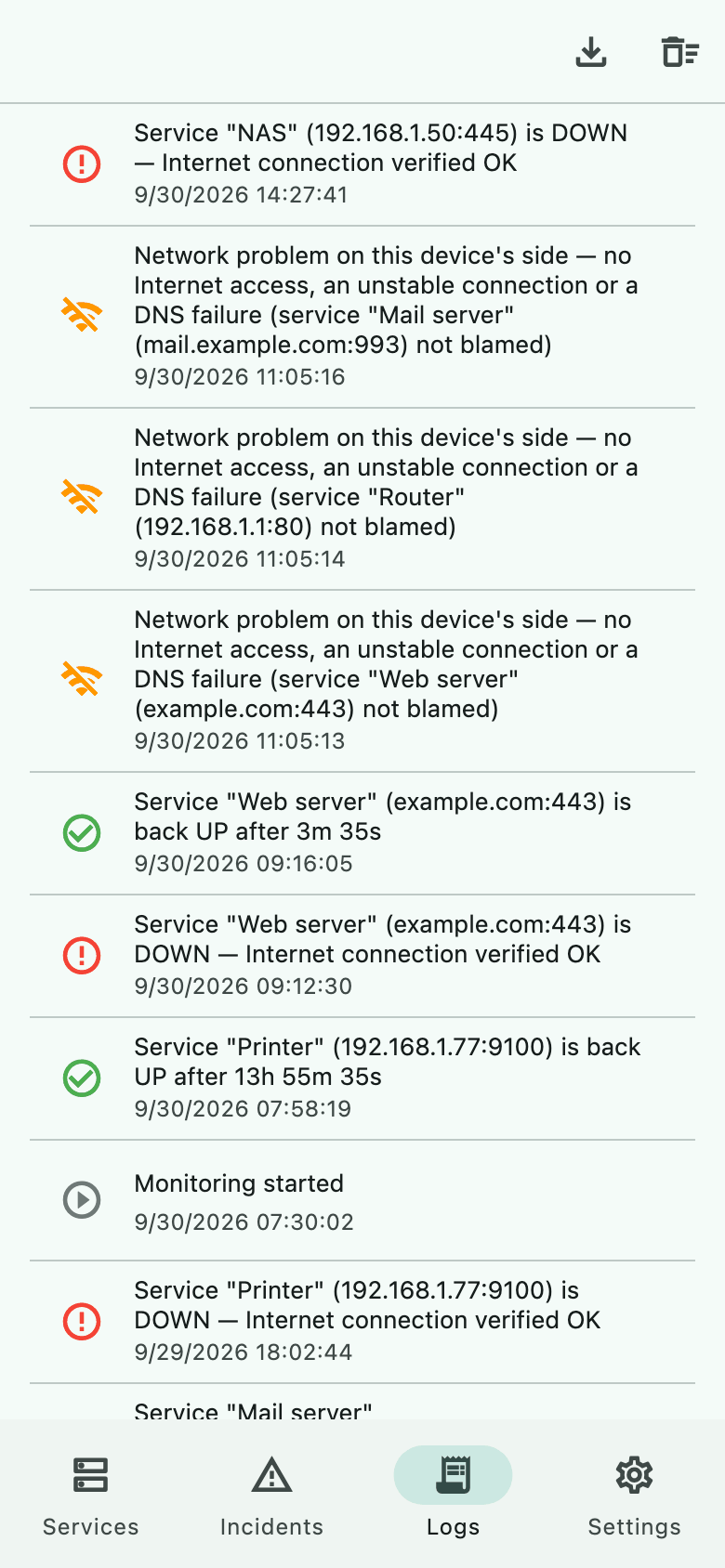
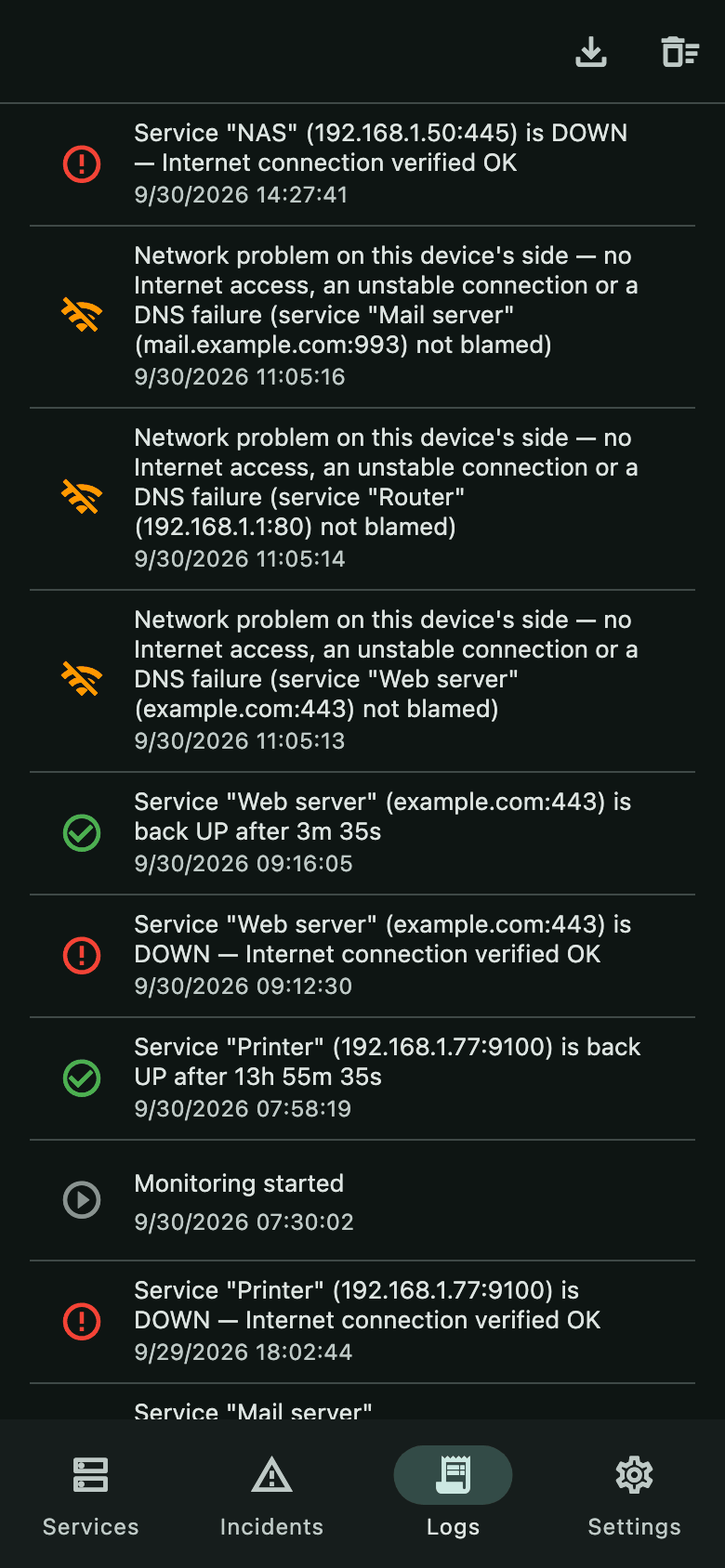
The chronological event log with CSV export.
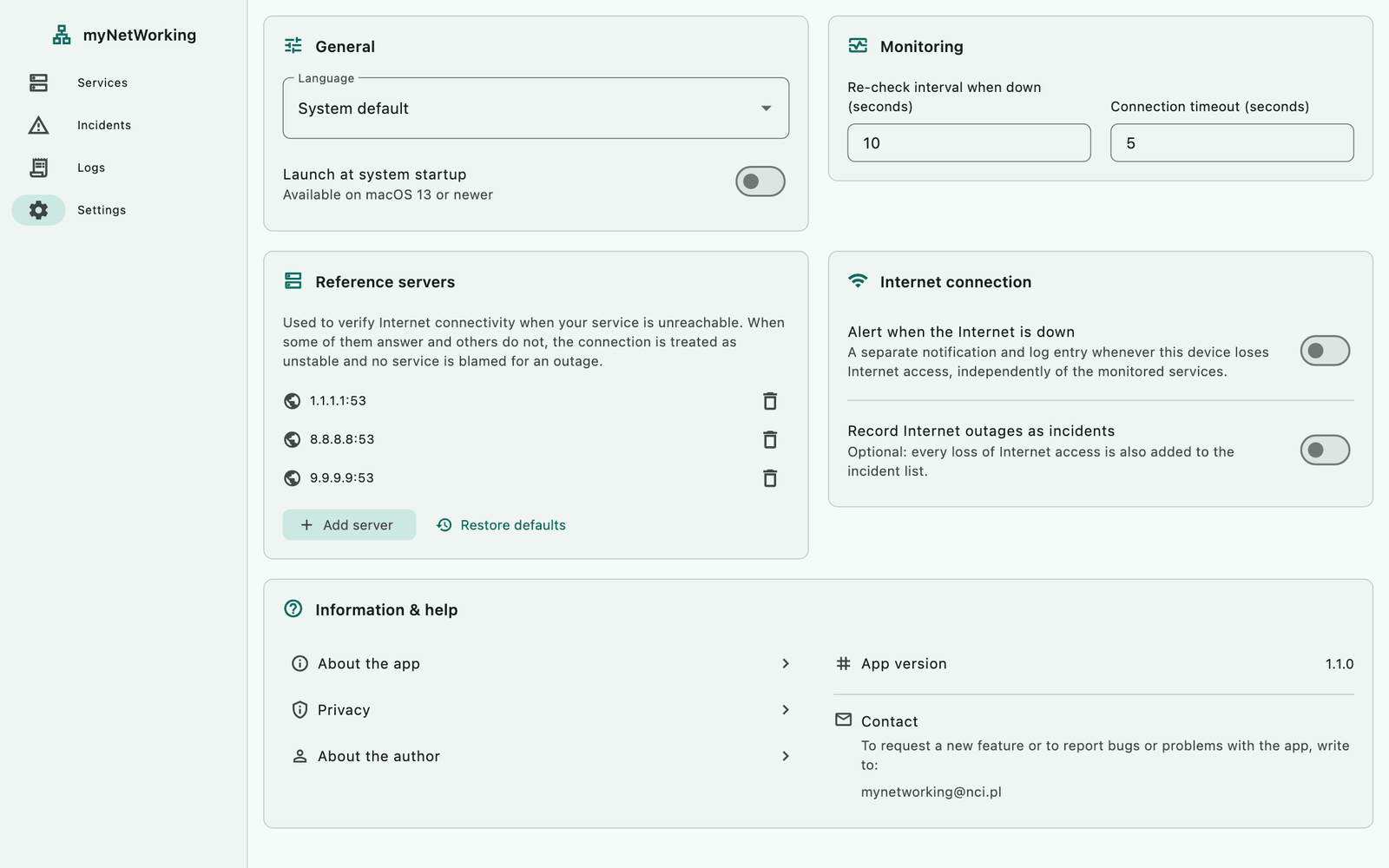
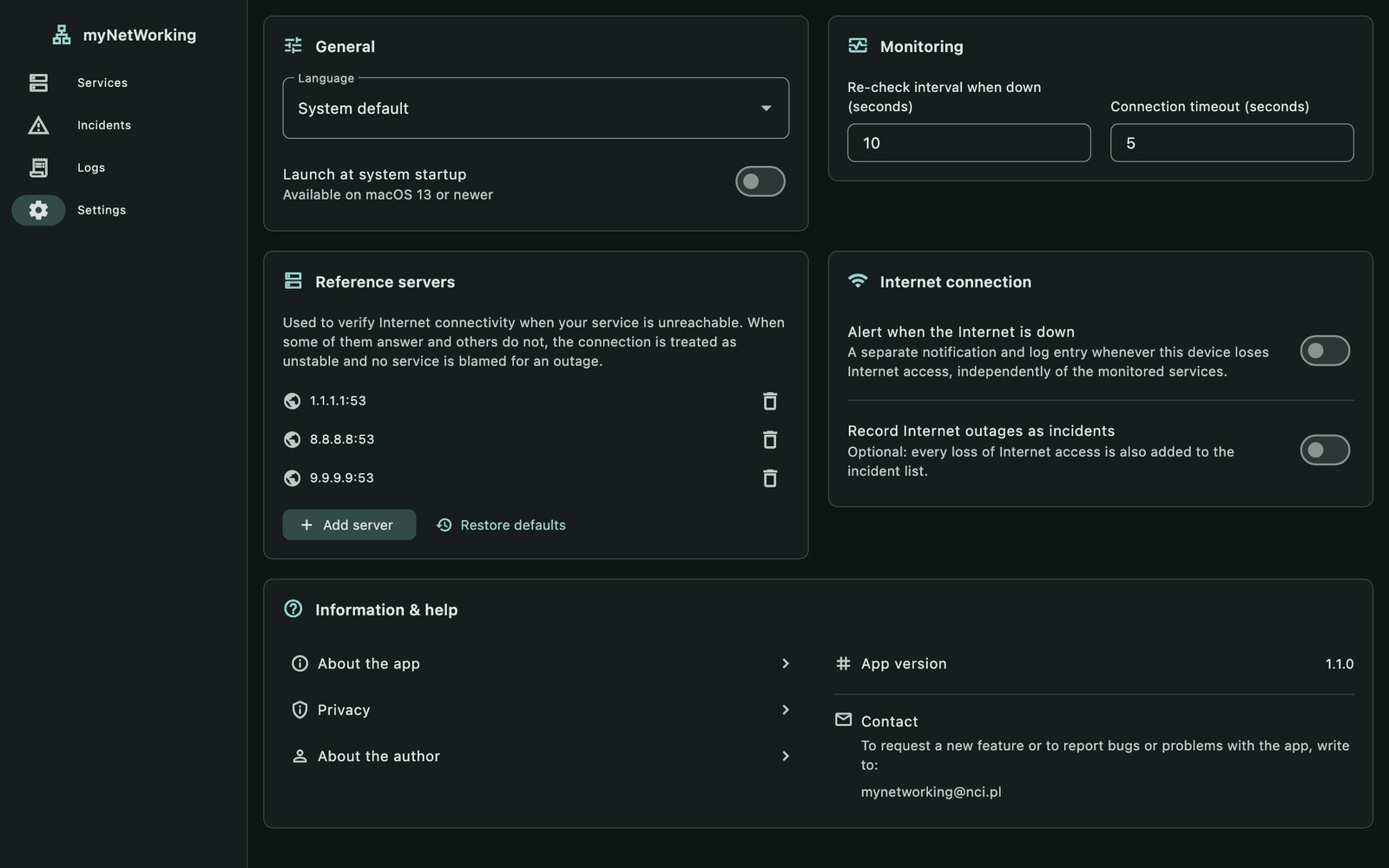
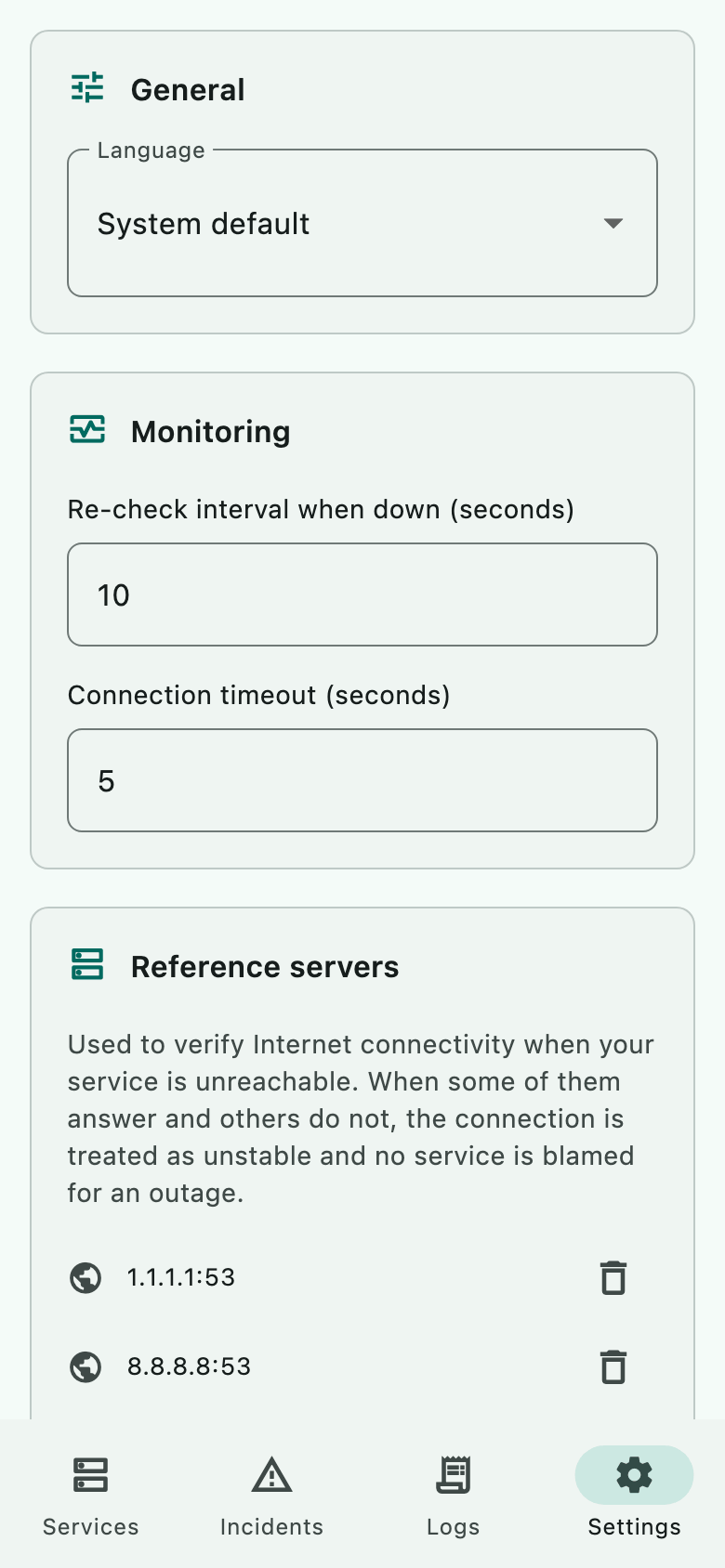
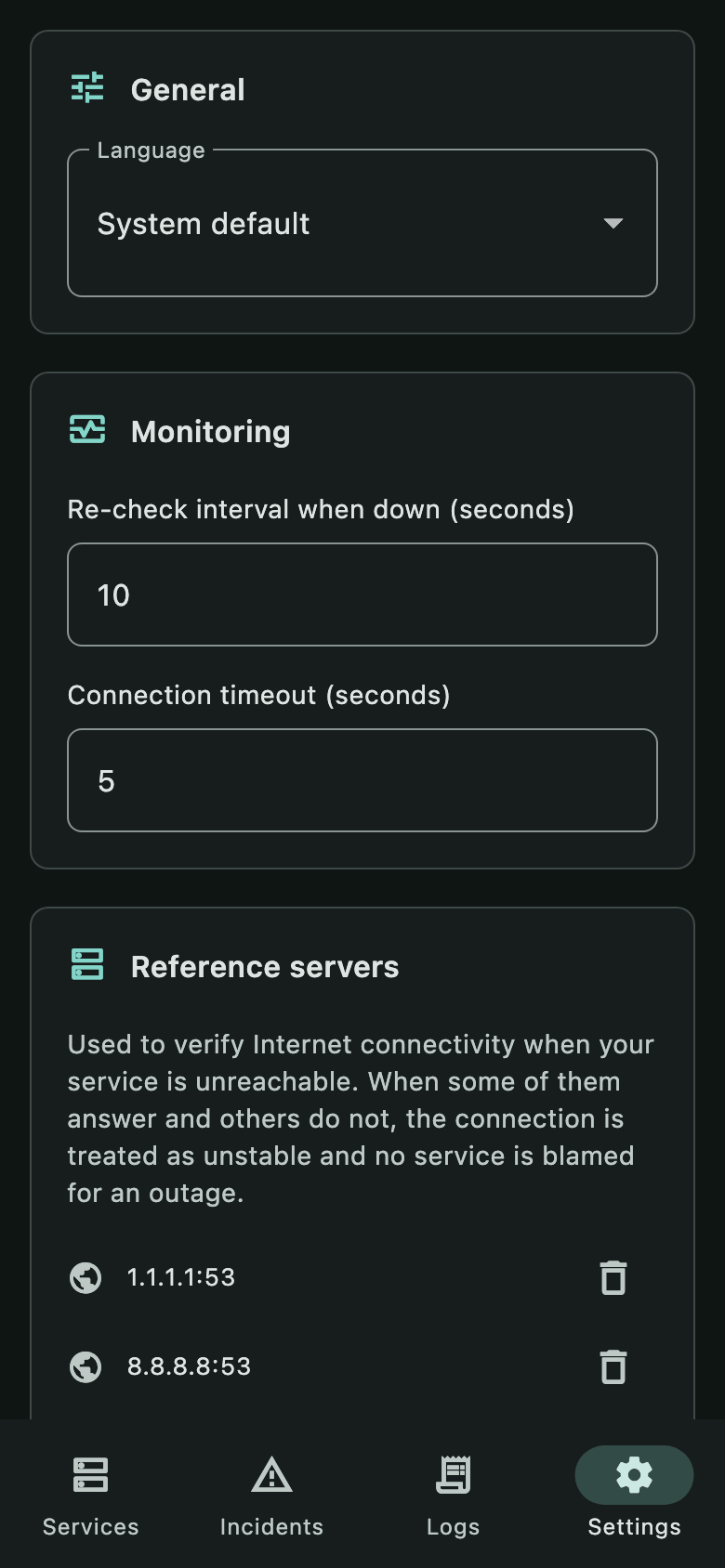
Settings: language, launch at startup, intervals, reference servers and no-Internet alerts.
myNetWorking
Smarter outage verification. The reference servers must agree. When some of them answer and others do not, the connection is treated as unstable and no service gets the “DOWN” status.
Icons view and sorting. Services as a list or as a grid of tiles in three sizes, in manual order, by name or by last incident.
Incident archive and CSV export. Move finished incidents to the archive, and save the log and the incident history to a file that opens in Excel, LibreOffice or Numbers.
Watching the Internet itself. An optional notification, log entry and incident when your device loses Internet access.
New platforms. The first release for iPhone and iPad, .deb and .rpm packages for Linux (x64 and ARM64), and a .dmg file for macOS with a “Check for updates” button.
Android without a time limit. Background monitoring runs as a foreground service with a permanent notification — without the 6-hour limit that Android 15 places on data sync services.
Notifications on Windows. System notifications with sound for service outages and recoveries, an alarm repeated until acknowledged, and a separate notification when the Internet connection is lost.
The full list of changes is in the changelog.
Download · v1.1.0
Free, with no account and no ads. Pick your system.
Install and update through the App Store. Recommended on a Mac.
Signed with a Developer ID certificate and notarized by Apple. Look for new versions with the “Check for updates” button in the app.
Install and update through the Microsoft Store.
A .deb package with an applications menu entry. Look for new versions with the “Check for updates” button in the app.
An .rpm package — install it in Software or with dnf. Look for new versions with the “Check for updates” button.
Full monitoring while the app is open; in the background iOS allows only occasional checks (about every 15 minutes).
Coming soon to the App Store.
Monitoring keeps running in the background too, with no time limit — as a foreground service with a persistent notification.
Coming soon to Google Play.
last checksnow
Privacy
The app connects only to the services you add yourself and to the reference servers. Versions downloaded from this site contact nci.pl only when you click “Check for updates”.
Outgoing connections
Help
The manual takes you from your first service all the way to running in the background, and the FAQ explains statuses and alarms. If something doesn’t work, submit a public report or send an email.
Prefer email? Write to mynetworking@nci.pl