
Local network scan
Ping, TCP probes and the ARP table – it finds devices that ignore ping, too.
NEWVersion 1.0.0 · 17 November 2026
FlyingScanner scans your home network, identifies the connected devices and helps you keep them organized with your own names, categories, rooms, tags and notes. No account, no cloud – your list stays on your computer.
A-01The app
All devices on your home network in one list, with a summary: how many are online, how many are new and how many still need a description.
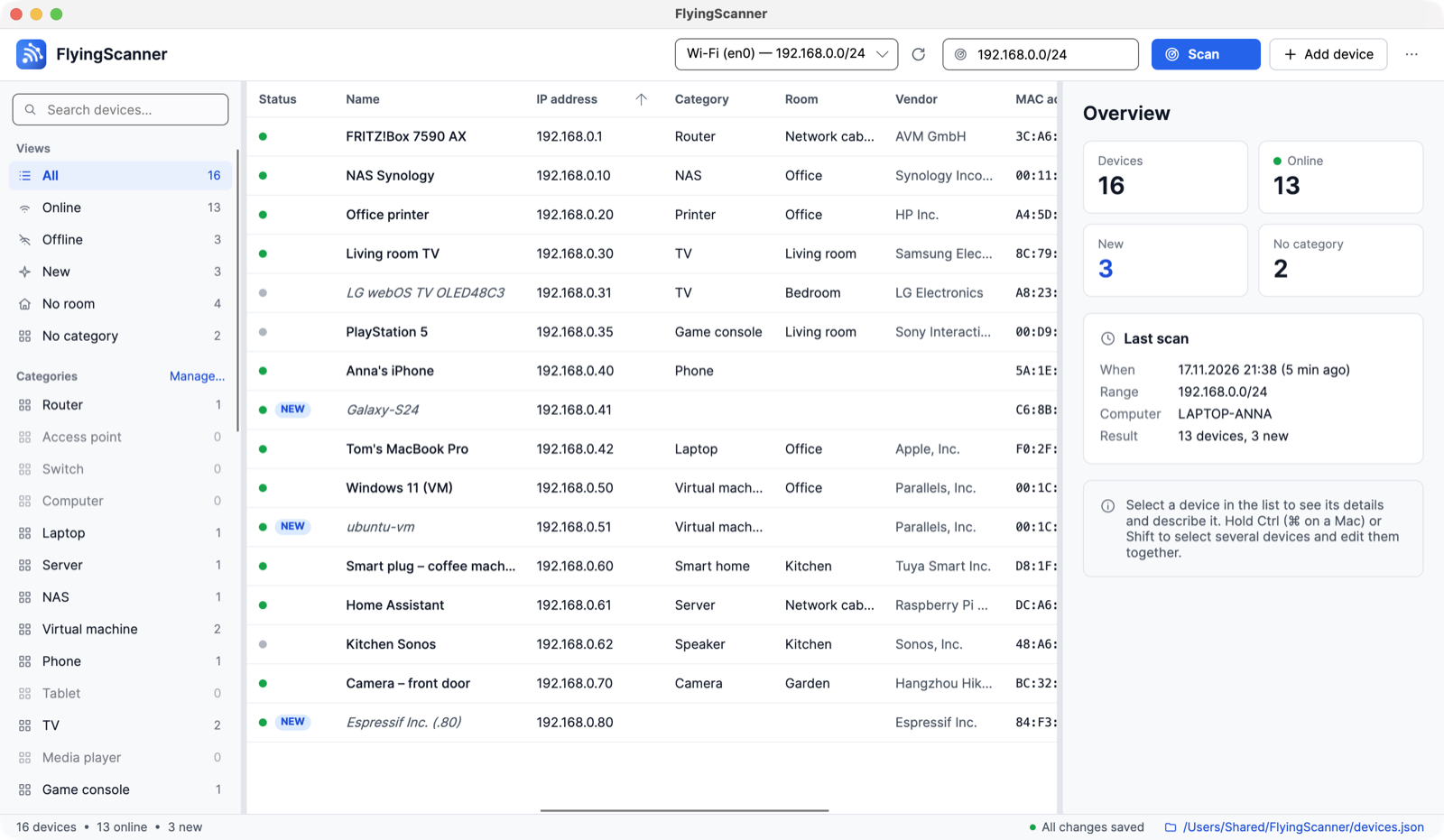
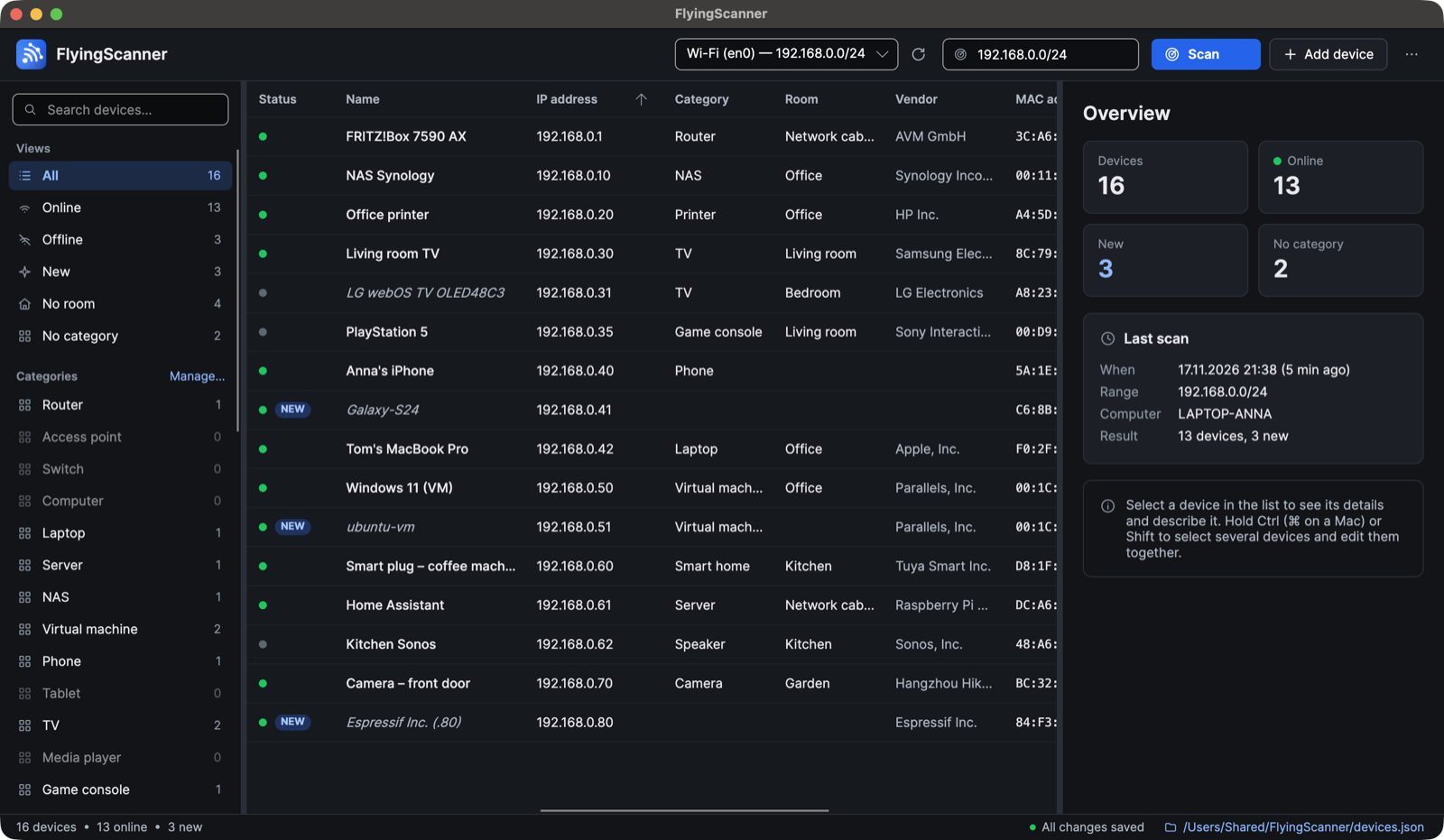
devices.json.A-02Features
With one click FlyingScanner finds your router, computers, phones, TVs, printers, NAS drives, cameras, virtual machines and smart home devices – and then helps you describe and organize them.
Ping, TCP probes and the ARP table – it finds devices that ignore ping, too.
IP and MAC address, network adapter vendor (IEEE OUI registry), host name (DNS, mDNS/Bonjour, NetBIOS) and open common TCP ports.
TVs, printers, routers and NAS drives announce their own name and model (UPnP/SSDP). Based on this, FlyingScanner suggests a category for each device.
Your own names, categories, rooms, tags and notes. Edit several devices at once and add the ones the scanner cannot see manually.
Later scans only update the automatically detected information – they never change what you entered. Devices are recognized by their MAC address, so a new IP address breaks nothing.
Online and offline, NEW devices, last seen time and scan history. Views: online, offline, new, without category, without room.
Your list lives in the Documents folder, with a backup copy on every save – easy to archive, compare or share between several computers, including virtual machines. CSV export (Excel, LibreOffice).
Search by name, address, vendor, tags and notes. Interface in English, Polish, Spanish and German, light and dark theme.
A-03How it works
01
Pick a network and click “Scan”. The app checks every address in the range, reads the ARP table and asks the devices for their names (DNS, mDNS, NetBIOS, UPnP). No administrator rights needed.
02
FlyingScanner suggests a category based on the vendor, ports, UPnP and name. You add your own names, rooms, tags and notes – one device at a time or several at once.
03
Later scans only refresh the automatically detected information. You see at a glance what is NEW on your network, what is offline and when it was last seen.
A-04Privacy
FlyingScanner needs no account, uses no cloud and sends no data about you, your devices or your network to anyone.
There is no sign-in and no server with your list. During a scan the app only talks to devices on your local network.
devices.json in the Documents/FlyingScanner folder, with a devices.json.bak backup. View, move or delete it at any time.
No ads, no analytics, no telemetry. This website uses no cookies and no resources from other servers either.
At startup (you can turn this off) and when you choose “Check for updates…”, the app sends one HTTPS request to nci.pl – with only the app’s name and version, no identifiers and no cookies. It never downloads or installs anything by itself.
Turn it off in Settings → Appearance & language → Updates: “Check for a new version at startup”. The Microsoft Store version never connects to nci.pl.
Request
GET /flyingscanner/version.json
Host: nci.pl
User-Agent: FlyingScanner/1.0.0
Accept: application/json
Response
{"version":"1.0.0",
"published_at":"2026-11-17", …}A-05Command line
Scan and list devices without the graphical interface – e.g. over SSH or in a virtual machine. The tool ships in every package, next to the app.
--json).--lang pl|en|es|de.# networks this computer is connected toflyingscanner-cli networks# scan and merge the result into your device listflyingscanner-cli scan 192.168.0.0/24 --save# devices saved in the data fileflyingscanner-cli list# results as JSONflyingscanner-cli scan --no-ports --json > scan.json# is there a new version?flyingscanner-cli version --checkA-06Download
Free, with no account and no sign-up.
macOS 12 Monterey or later
A DMG file, signed and notarized by Apple.
Ubuntu, Fedora and others
A tar.gz archive with an installer for the current user (no sudo).
Microsoft Store
Windows 10 (x64) and Windows 11 (x64 and ARM64). Installed and updated through the Microsoft Store.
Coming soonFlyingScanner will be available in the Microsoft Store.
A-07Questions
Can’t find an answer? Write to us: kontakt@nci.pl
Choose Apple menu → About This Mac. If “Chip” shows “Apple M…”, download the Apple silicon version. If you see “Processor” with an Intel name, download the Intel version.
The “App Update Required” message means that the Intel version is running on a Mac with Apple silicon. What to do
The app is signed by the developer and notarized by Apple. The first time, macOS only asks whether to open an app downloaded from the internet – click “Open”.
To find your devices, FlyingScanner has to connect to them. On the first scan, click “Allow” – without this permission the app cannot find all devices. You can change it later in System Settings → Privacy & Security → Local Network.
Unpack the tar.gz archive and run ./install.sh – no sudo needed. The installer adds FlyingScanner to the applications menu and creates the flyingscanner and flyingscanner-cli commands in ~/.local/bin. To uninstall, run ~/.local/share/FlyingScanner/uninstall.sh. Instructions and requirements
No. FlyingScanner needs no account, uses no cloud and has no ads, analytics or telemetry. Your device list stays in a file on your computer. The only internet connection is a check for a new version – the request contains only the app’s name and version. Privacy policy
The versions from this website check for a new version at startup and let you know about it. You can also choose “Check for updates…” in the app menu or run flyingscanner-cli version --check. The app never downloads or installs anything by itself – if you ask, it opens the download page. You can turn off the check at startup in Settings → Appearance & language → Updates.
No. Scanning does not require administrator rights – on Linux, run the app as a normal user (without sudo).
FlyingScanner for Windows 10 and Windows 11 will be available in the Microsoft Store, which will also deliver updates. The Store version never connects to nci.pl.