Manual · chapter 8 of 10
Settings
The Settings screen consists of five sections: General, Monitoring, Reference servers, Internet connection and Information & help. In a wide window the sections are arranged in two columns; in a narrow one, one below the other.
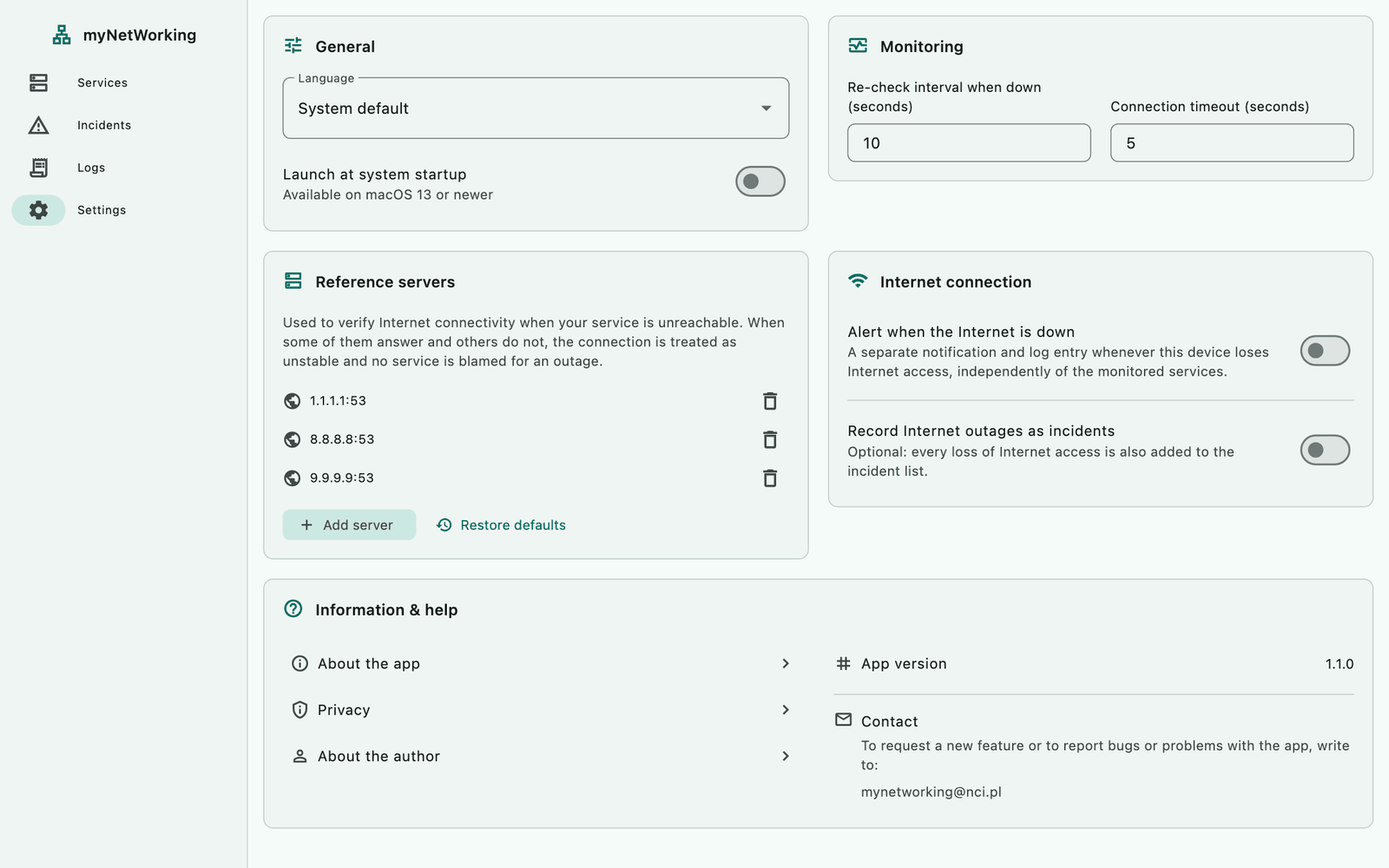
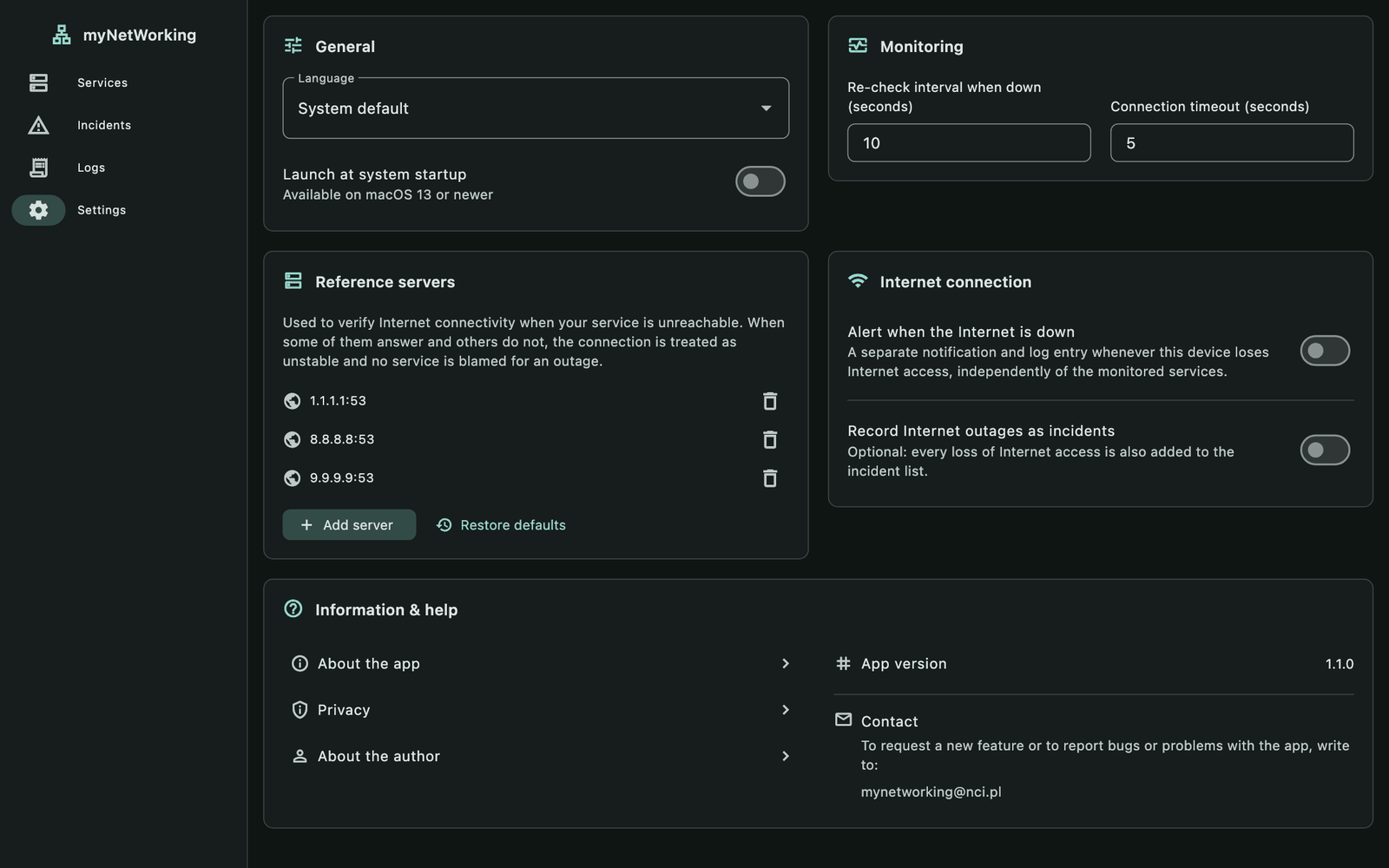
New in 1.1.0: the new settings layout in sections, launch at startup, no-Internet notifications and the Check for updates button in the versions from this site.
General
| Setting | Default | Description |
|---|---|---|
| Language | System default | Polski, English, Español or Deutsch. The change takes effect immediately |
| Launch at system startup | off | only on macOS 13 or later, Windows and Linux |
| Quit myNetWorking | – | Linux only: stops monitoring and closes the app |
With System default, the app uses the system language, and if that is not one of the four supported languages, English.
Launch at system startup works a little differently on each system:
macOS: the app registers itself as a login item (macOS 13 or later). On macOS 12, the switch doesn’t work, and the app shows the message “The automatic startup setting could not be changed.”
Windows: the app uses a Microsoft Store startup task. The myNetWorking entry is also visible in Task Manager → Startup apps.
Linux: the app creates the file
~/.config/autostart/com.miotk.mynetworking.desktop, and deletes it when you turn the option off. If you turn off autostart with a desktop tool, the app takes that into account too.
This option is not available on phones and tablets. The switch shows the actual state as read from the system.
On Linux, closing the window only minimizes it, which is why this section has a Quit myNetWorking button — the Ctrl+Q shortcut does the same.
Monitoring
| Setting | Default | Range |
|---|---|---|
| Re-check interval when down (seconds) | 10 | 5 or more |
| Connection timeout (seconds) | 5 | from 1; values above 60 behave as 60 |
Re-check interval when down applies to services with the “DOWN” and “No network” statuses, and to checking the connection during an Internet outage. You set the regular check interval separately in each service.
Connection timeout applies when connecting to services and to the reference servers.
Values are saved as you type. A value below the minimum, or an empty field, is ignored without a message — the previous value stays.
Reference servers
The list of servers the app uses to check whether your connection works. By default: 1.1.1.1:53, 8.8.8.8:53 and 9.9.9.9:53.
Add server opens a dialog with fields for a host or IP address and a port (53 by default).
The trash icon removes a server. The last server can’t be removed.
Restore defaults immediately restores the three default servers, without asking.
When and how to change the servers is described in the Internet check chapter.
Internet connection
| Switch | Default | What it does |
|---|---|---|
| Alert when the Internet is down | off | a separate notification and log entry when the device loses Internet access |
| Record Internet outages as incidents | off | Internet outages also go on the incident list |
How the no-Internet notifications and incidents work is described in the Internet check chapter.
Information & help
About the app — a description of how the app works.
Privacy — the privacy principles. In versions downloaded from this site, they include an extra section about the update check.
About the author — information about the creator of the app.
App version — the number of the installed version, e.g. 1.1.0. Include it when you report a bug.
Check for updates — only in versions downloaded from this site (
.dmg,.deb,.rpm). It connects to nci.pl only when you click it. It is described in the Updates chapter.Contact — the mynetworking@nci.pl address, which you can select and copy.
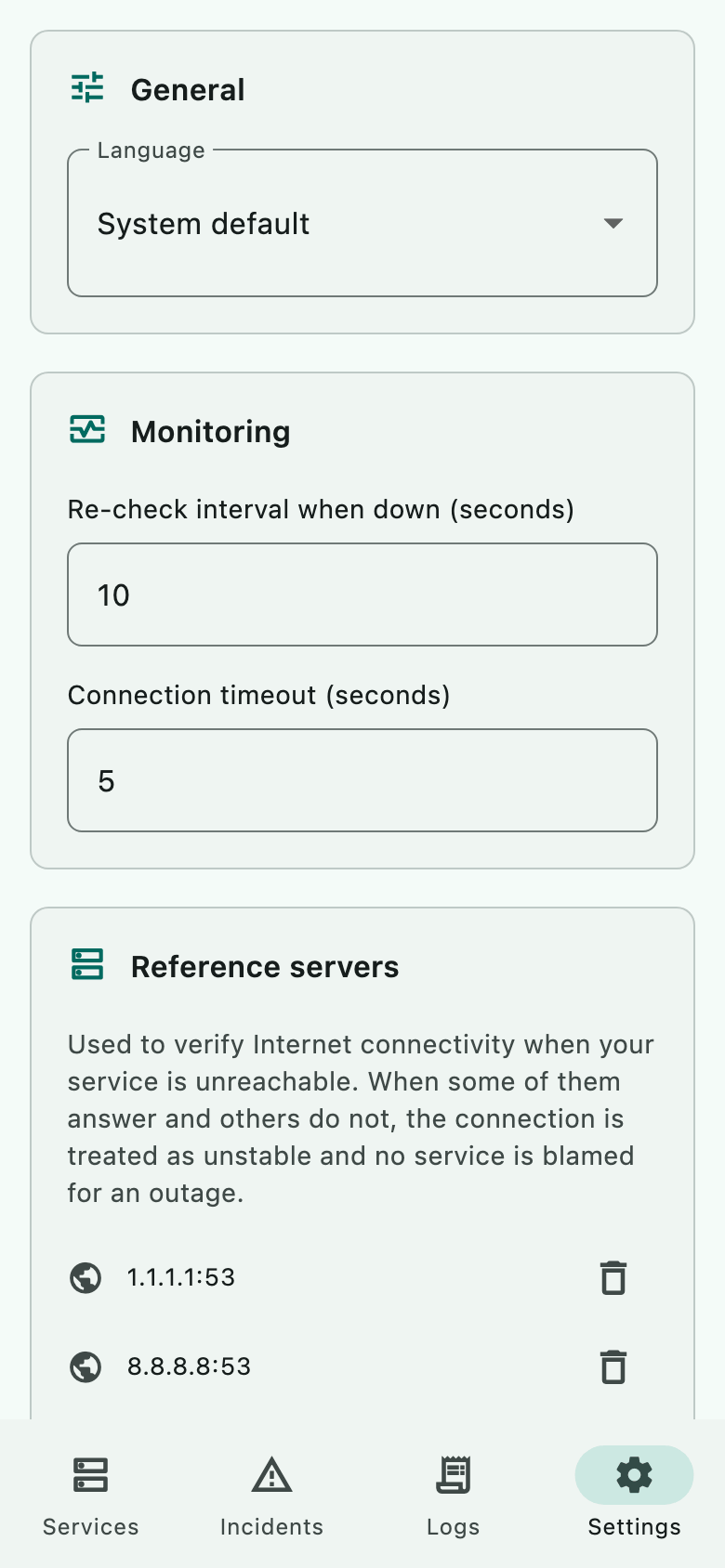
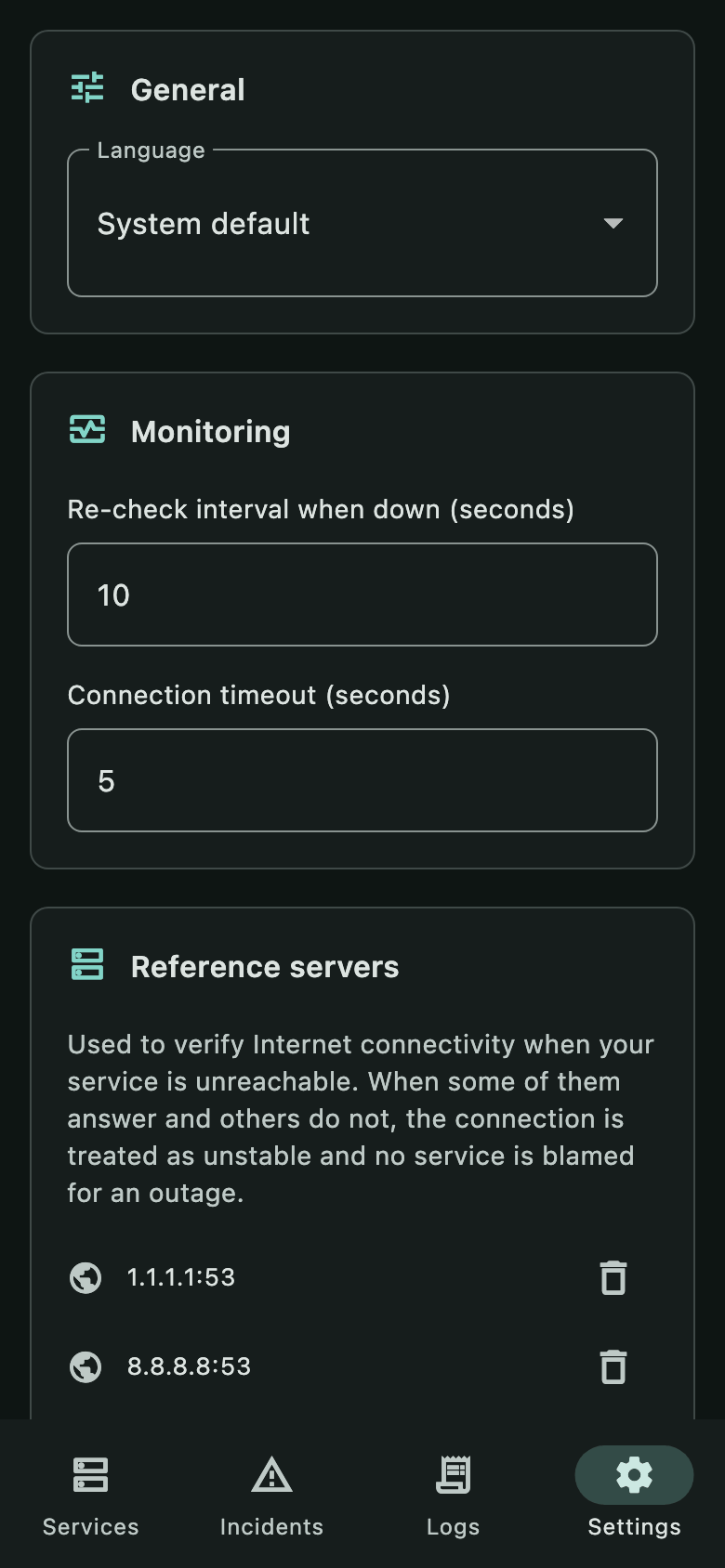
Settings in other places
You choose the list or icons view, the icon size, the sort mode and its direction in the toolbar of the Services tab — the app remembers these choices too. You set alarms and the check interval separately in each service.
The app has no “reset everything” button. You delete data by deleting services, incidents and the log, or by uninstalling the app.
myNetWorking 1.1.0 · Features added in 1.1.0 are marked in the text.