Manual · chapter 6 of 10
Event log and CSV
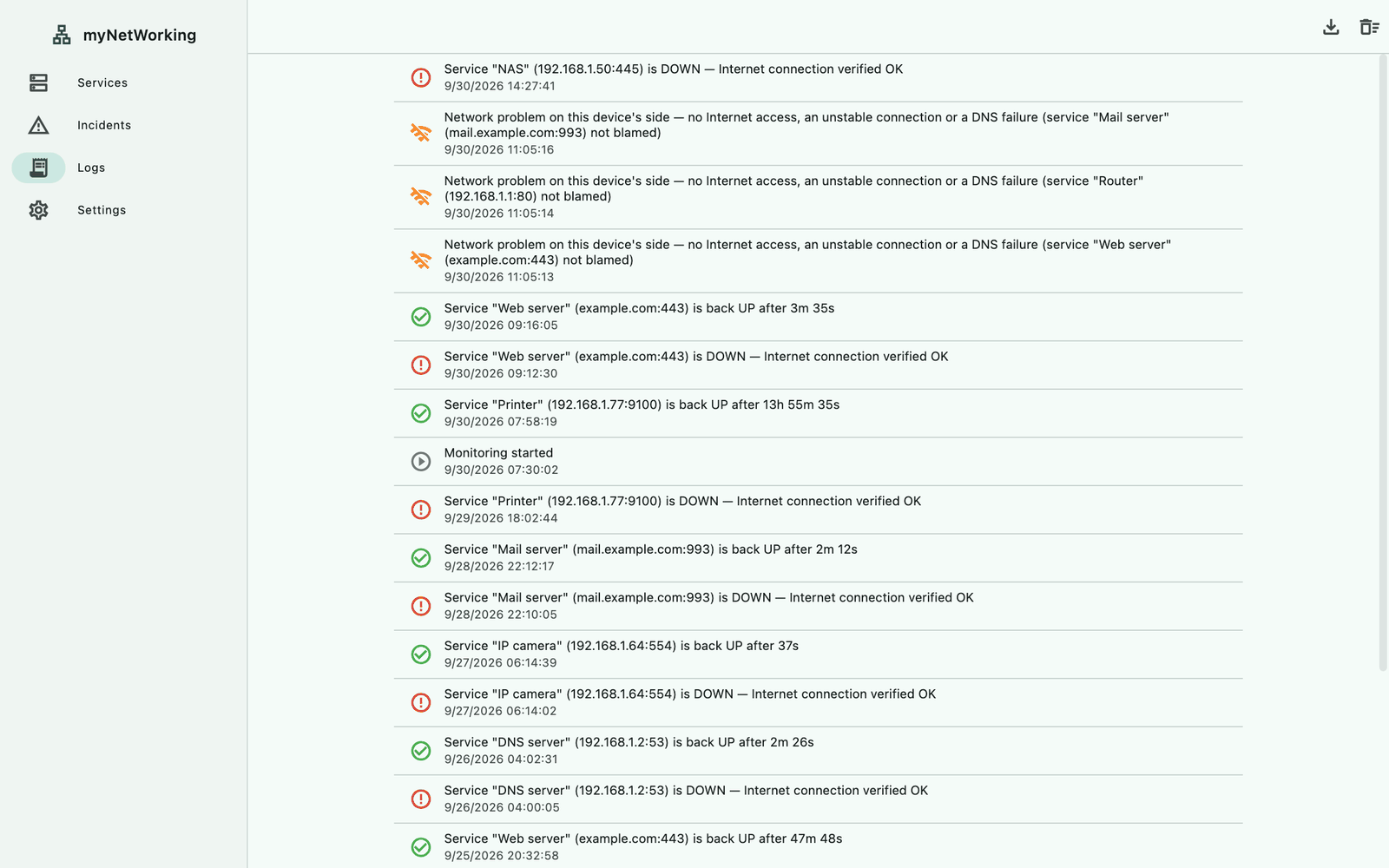
The Logs tab is a chronological record of everything important that happened during monitoring: outages, service recoveries, network trouble and app starts. The newest entries are at the top. This chapter also describes how to export the log and the incidents to a CSV file.
Entry types
| Event | Example entry |
|---|---|
| service outage | Service "NAS" (192.168.1.50:445) is DOWN — Internet connection verified OK |
| service recovery | Service "NAS" (192.168.1.50:445) is back UP after 12m 10s |
| service paused during an outage | Monitoring of service "NAS" (192.168.1.50:445) paused — its ongoing incident was closed after 5m 12s |
| network problem | an entry saying that the service changed to “No network”, noting that it is not the service’s problem |
| no Internet | No Internet access |
| Internet back | Internet access restored after 2m 30s |
| app start | Monitoring started |
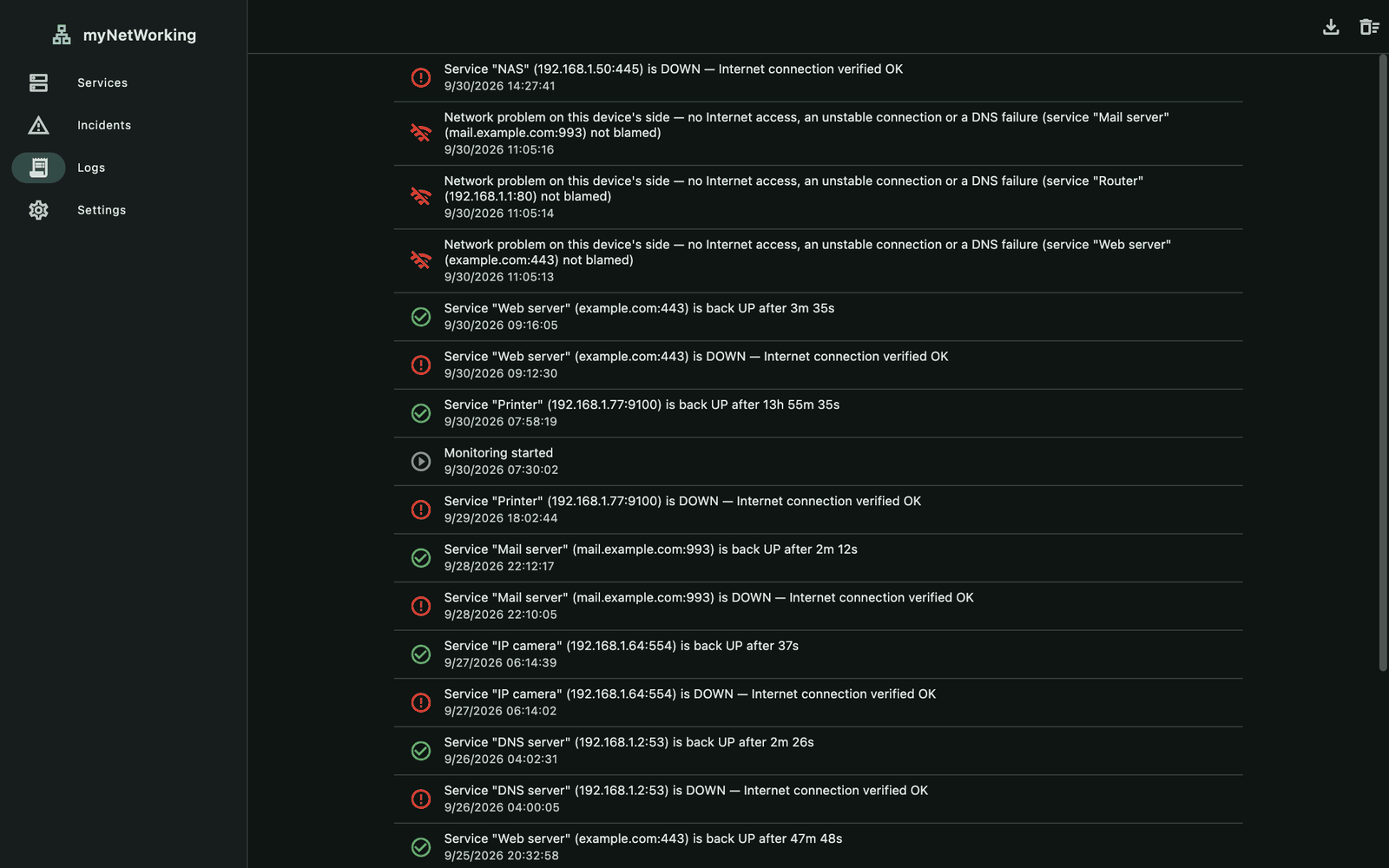
Each entry has an icon in the color of the event (red for an outage, green for a recovery, orange for network problems) and a date and time.
A network problem entry appears once, when the service changes to “No network”, not at every check.
Internet entries appear only when the Internet connection watch is turned on — see the Internet check chapter.
“Monitoring started” is recorded every time the app starts.
Language of the entries
The app stores the type of the event and its data, and builds the sentence when the entry is displayed, in the current language. After you change the language in the settings, older entries are shown in the new language too.
How many entries are kept
The log keeps up to the latest 500 entries. Older ones are removed automatically. Deleting a service does not remove its log entries.
The Clear logs button (the trash icon with horizontal lines in the top bar) immediately deletes the entire log, without asking. If you want to keep the history, save it to a CSV file first.
Export to CSV
Open the Logs tab (or Incidents).
Click Export to CSV — the download icon in the top bar. The button is visible when there is something to save.
Choose where to save the file in the system dialog and confirm.
After saving, the message “Saved to” followed by the file path appears at the bottom. If saving fails, you’ll see “The CSV file could not be saved.” Canceling the dialog changes nothing.
New in 1.1.0: exporting the log and the incident history to a CSV file.
Columns of the log file
The file is named after the date and time it was saved, e.g. myNetWorking-logs-20260930-143205.csv, and has these columns:
| Column | Content |
|---|---|
| Date and time | e.g. 2026-09-30 14:32:05, local time |
| Type | the English event code: serviceDown, serviceUp, servicePaused, networkDown, internetDown, internetUp or monitoringStarted |
| Service | the service name, or its address if the service has no name; empty for app and Internet events |
| Address | host:port |
| Duration (s) | the number of seconds, for a service or Internet recovery and for a service paused during an outage |
| Description | the sentence in the app’s language, as on the Logs tab |
The columns of the incident file are described in the Incidents and archive chapter. The column headers are in the app’s language, and the rows are ordered from newest to oldest.
File format
separator: semicolon (
;);encoding: UTF-8 with a BOM;
dates in the format
YYYY-MM-DD HH:MM:SS, the same in all languages, so they are easy to sort;values that contain a semicolon, a quotation mark or a line break are enclosed in quotation marks.
Thanks to this, Excel with Polish regional settings opens the file straight into columns, and LibreOffice and Numbers detect the separator automatically. If Excel with other regional settings shows everything in one column, import the file from the Data tab (From Text/CSV) and choose the semicolon as the delimiter.
Save dialog on different systems
| System | Save dialog |
|---|---|
| macOS | the standard save dialog, e.g. “Save the log as CSV” |
| Windows | the system “Save As” dialog |
| Linux | a file chooser through the XDG Desktop Portal service — standard in GNOME and KDE |
| Android | the system picker for the save location; the message shows a content:// address instead of a path |
| iPhone, iPad | the system export sheet and the Files app |
myNetWorking 1.1.0 · Features added in 1.1.0 are marked in the text.