Manual · chapter 5 of 10
Incidents and archive
An incident is the record of one service outage: when it started, when it ended and how long it lasted. You’ll find all incidents on the Incidents tab.
How an incident is created
An incident opens when a service gets the “DOWN” status and has no ongoing incident. Going back to “DOWN” after a “No network” period continues the same incident.
While it lasts, it is marked “ongoing”.
It closes when the service is “Online” again — even if there was a “No network” period between the outage and the recovery. It then gets an end time and its final duration. It also closes when you pause monitoring of the service.
The “No network” status alone does not create an incident, because it is not the service’s fault.
Optionally, incidents can also be created when the Internet connection is lost — see below.
The app keeps up to 300 incidents. When the limit is exceeded, the oldest ones are removed.
The “Current” and “Archive” tabs
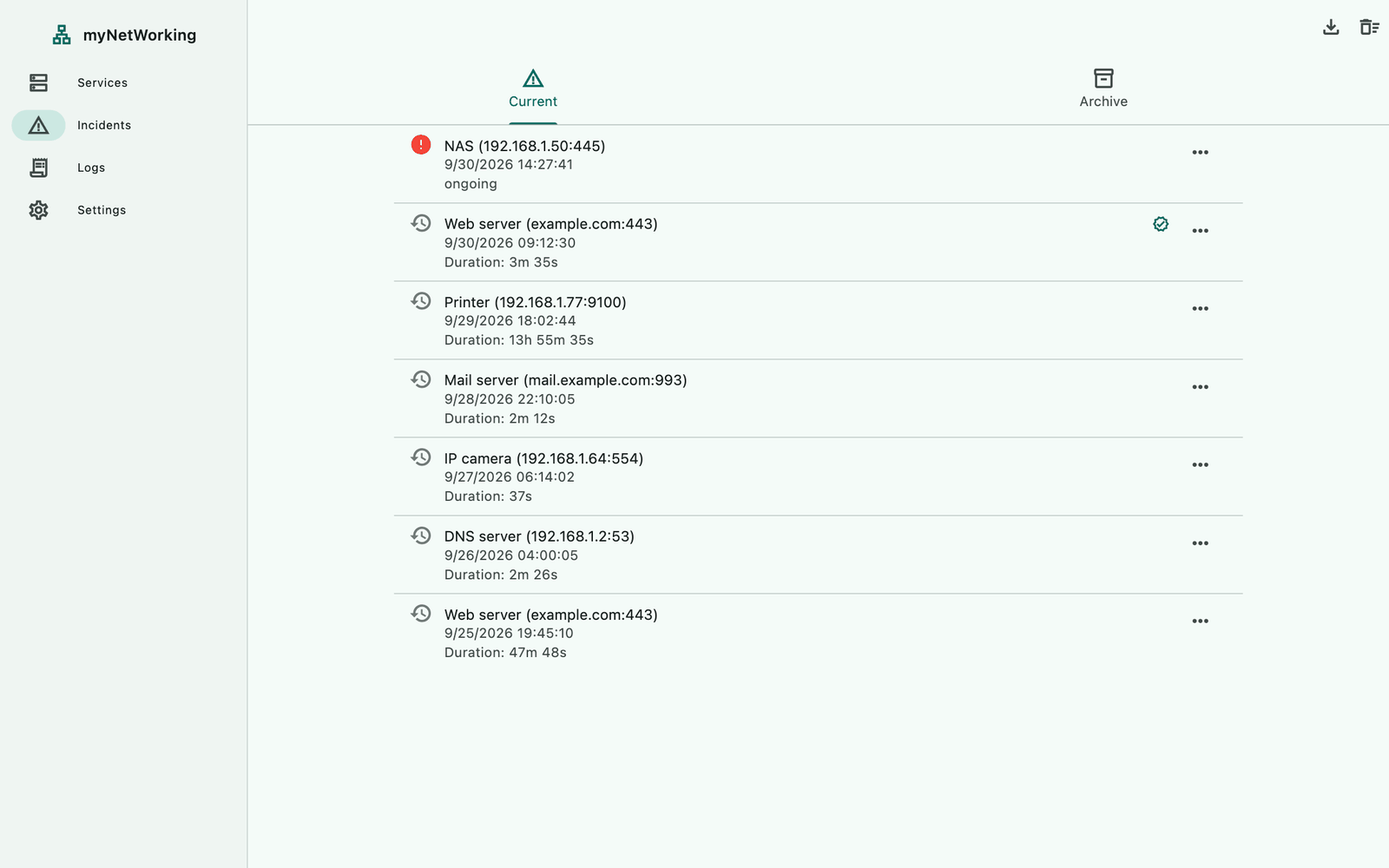
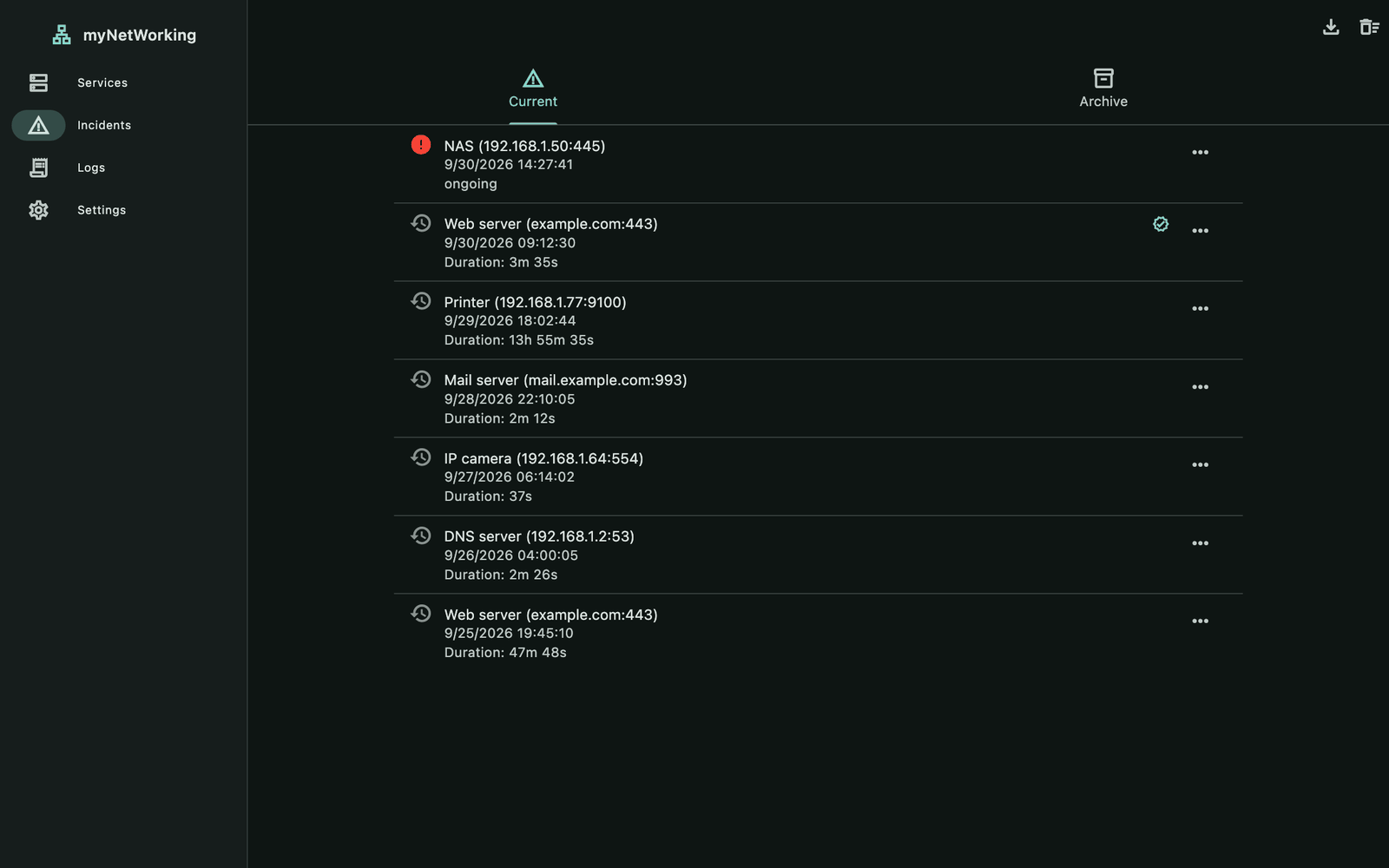
The Incidents screen has two tabs: Current and Archive. You switch between them by clicking or by swiping. The newest incidents are at the top.
Each row shows:
an icon: a red exclamation mark for an ongoing outage, a clock for a finished one, a box in the archive, and a globe for Internet incidents;
the title: the service name and its address, e.g.
NAS (192.168.1.50:445), or “No Internet access”;the start date and time;
“ongoing” or the duration, e.g.
Duration: 1h 2m 3s;a badge if the incident has been acknowledged.
The duration takes the form 45s, 1m 5s, 1h 0s or 1d 1h 1m 1s. Zero hours and minutes are left out; seconds are always shown.
Incident actions
Click ⋮ (Incident actions) at the end of the row:
| Command | When it is available | What it does |
|---|---|---|
| Acknowledge incident | the incident has not been acknowledged yet | adds the “Acknowledged” badge; does not stop the alarm |
| Move to archive | a finished incident on the “Current” tab | moves the incident to the archive |
| Restore from archive | an incident in the archive | moves it back to the current incidents |
| Delete | always, even for an ongoing incident | deletes the incident after you confirm in the “Delete incident?” dialog |
You can’t move an ongoing incident to the archive — it has to finish first.
Important: Acknowledge incident does not silence the alarm. That is what the Acknowledge alarm bell on the Services tab is for — see the Alerts and notifications chapter.
New in 1.1.0: the “Current” and “Archive” tabs, acknowledging incidents and deleting single incidents.
Clearing
The Clear incidents button (the trash icon with horizontal lines in the top bar) immediately deletes all finished incidents from the open tab, without asking. Ongoing incidents remain. The button is visible when the open tab contains finished incidents.
Deleting a service also deletes all its incidents, current and archived.
No-Internet incidents
When you turn on Settings → Internet connection → Record Internet outages as incidents, every loss of Internet access creates a “No Internet access” incident. It closes when the Internet connection comes back. These incidents work like all the others: you can archive, acknowledge and delete them. The details are in the Internet check chapter.
Export to CSV
The Export to CSV button (the download icon in the top bar) saves all incidents — from both tabs, ongoing ones included — to a file with the date and time in its name, e.g. myNetWorking-incidents-20260930-143205.csv. The file has these columns:
| Column | Content |
|---|---|
| Kind | service or internet |
| Service | the service name (its address if the service has no name) or “No Internet access” |
| Address | host:port; empty for the Internet |
| Start, End | date and time, e.g. 2026-09-30 14:32:05; the end is empty while the incident is ongoing |
| Duration (s) | the number of seconds; for an ongoing incident, up to the moment of the export |
| Duration | the duration in the form 1h 2m 3s |
| Ongoing, Acknowledged, Archived | Yes or No |
The file format, the save dialogs on the different systems and opening the file in Excel are described in the Event log and CSV chapter.
New in 1.1.0: exporting the incident history to a CSV file.
myNetWorking 1.1.0 · Features added in 1.1.0 are marked in the text.